

Threads Analytics: What Your Insights Numbers Mean

Threads native Insights cover views, interactions, followers, and demographics — but skip best-time-to-post, save counts, and per-post engagement rate. Track 5 metrics that matter, run a 15-minute weekly review, and use an analyzer to spot the fixes the dashboard won't tell you.
Most people open Threads Insights, glance at their view count, feel a small dopamine hit, and close it. That's not analytics — that's a vibe check.
The data is genuinely useful once you know which numbers to ignore and which ones predict growth. This post covers exactly what Threads shows you, what it hides, the five metrics worth tracking, how to build a fast weekly review you'll actually do — and even the small stuff like how to see who liked your post on Threads.
How Do You See Who Liked Your Post on Threads?
To see who liked your post on Threads, tap the post to open it, then tap the engagement summary (the small row showing likes, replies, and reposts) directly under the post. Threads opens a list of every account that reacted, reposted, or replied. There's no separate "likes" tab buried in a menu — it's right on the post itself, and the full walkthrough for seeing who liked your Threads post covers the edge cases, like what happens when like counts are hidden. This is the most granular interaction data Threads gives you at the individual level: you can see who engaged, not just how many. For broader numbers, your profile-level Insights show total likes, replies, reposts, and quotes across all your content. The catch: Threads doesn't tell you who viewed your post without engaging, and it won't show you who saved it. So the like list is your clearest signal of which real accounts your content reaches — useful for spotting whether the right people (your target audience, not just mutuals) are actually showing up.
What Do Threads Native Insights Show You?
Threads native Insights give you four core data buckets: views, interactions, followers, and audience demographics, all viewable for up to the past 90 days. You access them by tapping the icon at the top left of your profile on mobile, or by visiting threads.com/insights on web. As Meta announced in July 2025, the dashboard now breaks interactions into likes, replies, reposts, and quotes, and shows demographics like top cities, countries, age range, and gender. Tap Views and you'll see a chart over time plus a source breakdown — where people found your post: home feed, profile, search, the activity tab, Instagram, or Facebook. That last part matters because eligible Threads posts get recommended across Meta's apps, so part of your reach may come from outside Threads entirely. The time range is adjustable too: pull the chart back to the full 90 days to spot a slow trend, or zoom into the last 7 days to judge whether a recent change actually moved the needle.
One requirement to know: creator and personal accounts need 100 followers to unlock audience demographics, per Sendible's 2026 breakdown. Business accounts have no threshold.
What Don't Threads Insights Show You (The Gaps)?
Threads Insights leave out several metrics you'd expect from a mature analytics tool, and knowing the gaps keeps you from chasing numbers that don't exist. As Sendible's metric list makes clear, the dashboard's coverage is fairly limited — and reading what it does and doesn't catalog, the native view skips best-time-to-post recommendations, save/bookmark counts, hashtag performance, and a clean per-post engagement rate. Sendible is explicit on that last one: engagement on Threads "is calculated on an account level... without the ability to narrow down analytics to a specific post," so post-level interactions are reported as raw counts and the rate math is on you. Link click tracking did improve: as of May 2025, Threads tracks clicks on up to five bio links and links inside posts, so that gap is mostly closed. But the bigger issue is that the dashboard is descriptive, not prescriptive. It tells you what happened — 12,000 views, 340 likes — but never why one post tripled another or what to change next. That interpretation layer is where most creators get stuck, and it's exactly the work a dedicated analyzer or a disciplined weekly review fills in. The other blind spot worth naming: Insights will never tell you that Meta is filtering you. It reports the views you got, not the views you were denied, so a suppressed account and a boring account look identical in the dashboard. That one you have to check from the outside — our free Threads shadowban test does it by asking whether your profile and handle are even visible to someone who isn't logged in.
Profile analysis
See how your profile really scores
Postory analyzes your X, Threads or Bluesky profile and shows exactly what to fix to get more reach. Audits run on credits, bought in packs.
What Are the 5 Threads Metrics That Actually Matter?
The five Threads metrics worth tracking are engagement rate, reply count, follower-to-view ratio, view source mix, and top-post patterns — because each one predicts something the raw view count can't. Views feel good but lie; a post can rack up impressions and convert nobody. Engagement rate tells you whether the people who saw it actually cared, normalized so a small post and a big one are comparable. Reply count is the one Threads weights most heavily for distribution, since the platform is built around conversation. Follower-to-view ratio is the only metric here that proves a post grew your audience rather than just entertaining it. View source mix reveals whether your native Threads reach is real or propped up by Instagram and Facebook recommendations. And top-post patterns turn a pile of numbers into a repeatable formula. Here's what to watch and why:
- Engagement rate — Total interactions (likes + replies + reposts + quotes) divided by views, then times 100. This normalizes for reach so a 2,000-view post and a 20,000-view post are comparable.
- Reply count — Threads is conversation-first. Replies signal the algorithm that your post sparks discussion, which is weighted heavily for distribution. Track this separately from likes.
- Follower-to-view ratio — How many new followers a post earned per 1,000 views. This is your "did this content convert?" number.
- View source mix — If most views come from Instagram/Facebook rather than the Threads home feed, your native reach is weak even when totals look healthy.
- Top-post patterns — Look at your top 3 posts by views and your top 3 by likes. When the lists differ, you're learning what gets seen versus what gets loved.
The metric you don't need to obsess over: total view count in isolation. It's the headline number Threads shows first precisely because it's the most flattering — and the least actionable.
How Do You Export Threads Data?
Threads has no native one-click export button, so getting your data into a spreadsheet means either manual logging or pulling from the Threads API. The fastest reliable method for most creators is manual logging: once a week, open Insights, and copy your top posts' views, likes, replies, reposts, and quotes into a simple sheet with the post date and topic. It takes ten minutes and gives you trend lines Threads won't draw for you. If you're more technical, the Threads API (Meta's official developer platform) exposes media insights and account-level metrics programmatically, which is how third-party dashboards build their charts. For most solo creators and small teams, the API is overkill — the manual sheet wins because the act of logging forces you to actually look at the numbers. The point of exporting isn't to hoard data; it's to build a record over weeks so you can see whether a format, topic, or posting time is trending up or just had one lucky day.

How Do You Build a Weekly Threads Analytics Review (15 Minutes)?
A weekly Threads analytics review is a 15-minute, same-day-every-week ritual where you log your numbers, compare them to last week, and write down one change to test — and it beats daily checking because it filters out noise. Daily glances tempt you to overreact to a single flat post when, in reality, one post underperforming means almost nothing; a weekly cadence smooths out that randomness and shows the real trend underneath. Pick a fixed slot — say Monday morning before you post anything new — so it becomes automatic rather than a thing you "get around to." Threads even added a built-in weekly recap that compares your posts, views, new followers, and replies week over week, plus personalized tips, so half the data is already gathered for you — use it as your starting point. Here's the routine:
- Minutes 0–4: Open Insights, log views, total interactions, and new followers for the week into your sheet.
- Minutes 4–8: Identify your top post and your worst post. Note the topic, format (text, image, carousel), and posting time of each.
- Minutes 8–12: Calculate engagement rate on your top 3 posts. Spot the pattern — same topic? Same time of day? Question-style hook?
- Minutes 12–15: Write one sentence: "Next week I'll test ____." Maybe it's posting your replies earlier, or leading with a question, or cutting link-drops that tank reach.
That single test-per-week habit compounds. Twelve weeks in, you've run twelve experiments and your feed reflects what actually works for your audience — not generic advice.
What Does Good Threads Engagement Look Like (Benchmarks)?
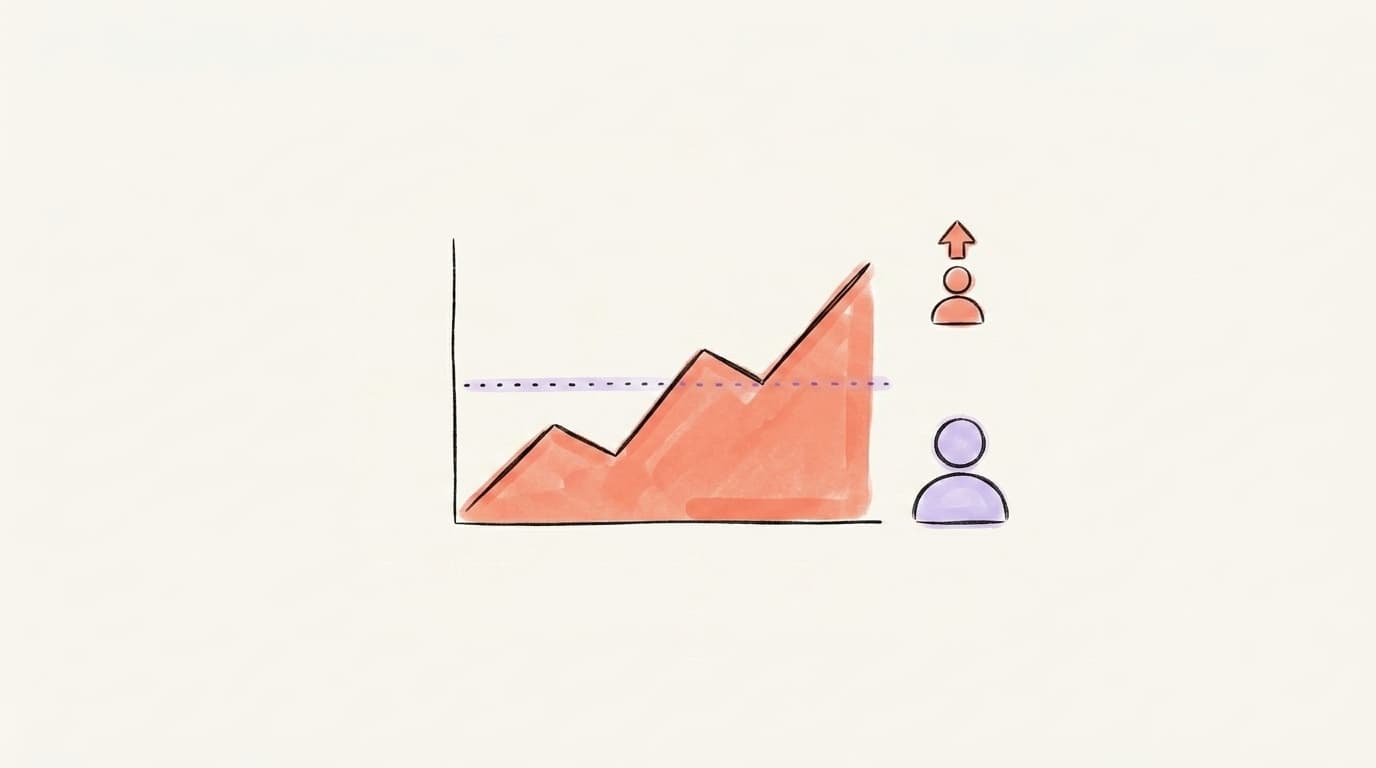
Good Threads engagement in 2026 sits in the mid-single-digit percent range per post, though it shifts with account size. According to Buffer's analysis of 52 million posts across 10 platforms, Threads' median engagement rate settled at roughly 3.6% in 2025, down from about 4.4% in 2024 as the platform matured and posting volume climbed. That makes a rate at or above ~3.6% a reasonable "keeping pace" baseline, and 4%+ genuinely strong. Account size changes the math, per WebFX's Threads benchmarks: smaller accounts (under 5,000 followers) often beat the average because their audiences are tighter, while accounts above 25,000 followers tend to drift lower as passive scrollers dilute the pool. So don't panic if a big-account creator out-engages you on rate — compare yourself to accounts your size. The honest takeaway: if your engagement rate is consistently above the platform median and your reply count is climbing, you're doing well. A persistently low rate across many posts is the signal to change your format or hook — though before you rewrite your whole approach, rule out the boring explanation: an account that's been filtered out of search and recommendations posts the same quality it always did and still reads as "persistently low" here.
How Do You Use AI to Audit Your Threads Account?
You use AI to audit your Threads account by feeding it your profile and recent posts, then letting it score the parts of your presence the native dashboard can't measure — bio clarity, posting consistency, format mix, and engagement quality — and rank the highest-impact fixes. Threads Insights tell you what your numbers are; an AI audit interprets why and tells you what to do next. That's the layer the native dashboard skips. A good audit looks at signals like whether your bio states a clear value proposition, whether your reply cadence supports growth, how your engagement breaks down across likes versus replies, and which of your post formats actually convert viewers into followers. Instead of staring at a view chart and guessing, you get a prioritized punch list. This pairs naturally with the manual weekly review above: the review tracks your trend, the audit tells you which lever to pull.
Start Tracking Threads with Postory
Threads Insights give you the raw numbers. The hard part is turning them into a decision — and that's where most accounts stall.
Postory's social media analyzer connects your Threads profile, scores it out of 100, and ranks the top fixes by impact — covering the things the native dashboard never shows: bio clarity, posting cadence, engagement quality, and which formats actually win for your account. It's the interpretation layer on top of your Insights.
Try Postory free — analyze your Threads profile, get a /100 score, and see your top fixes ranked in minutes.
If you want the bigger picture on how distribution actually works here, read our breakdown of the Threads algorithm — and if you also post on LinkedIn, our guide to what LinkedIn impressions mean explains how reach metrics differ across platforms.
FAQ
Q: How do I see who liked my post on Threads?
Tap the post to open it, then tap the small engagement summary row beneath it showing likes, replies, and reposts. Threads opens a list of every account that liked, replied, or reposted. There's no hidden menu — the like list lives right on the post.
Q: Do you need a certain number of followers to see Threads Insights?
Creator and personal accounts need 100 followers to unlock audience demographics. Business accounts have no follower threshold and can see demographics from the start. Basic view and interaction counts are available before you hit 100 followers.
Q: What is a good engagement rate on Threads in 2026?
Threads' median engagement rate was roughly 3.6% in 2025 (Buffer), so matching or beating that is a healthy baseline. It varies by account size — smaller accounts often beat the median, while large accounts tend to drift lower as their audiences broaden. Consistently above the median with rising replies is a strong sign.
Q: Can Threads show me the best time to post?
No. Native Insights do not include best-time-to-post recommendations, save counts, or hashtag performance. You can infer your best times by logging the posting time of your top posts each week and looking for patterns, or by using a third-party analyzer.
Q: How do I export my Threads analytics?
There's no native export button. Most creators log their top posts' views, likes, replies, and reposts into a spreadsheet once a week. Developers can pull data programmatically via the Threads API, but manual logging is faster and more practical for solo creators.
Q: Why are my Threads views high but engagement low?
High views with low engagement usually means your content is being seen but not resonating — often because the hook is weak or the post doesn't invite a reply. Check your view source mix; if most views come from Instagram or Facebook recommendations rather than the Threads home feed, your native audience fit may be off.
Q: How often should I check my Threads analytics?
Once a week is ideal. Daily checking tempts you to overreact to a single flat post, while a weekly review reveals real trends. Spend about 15 minutes logging numbers, spotting your top and worst posts, and writing down one change to test the following week.
Related articles

How to See Your Impressions on X (Twitter)
How to see impressions on X: the per-post panel, the account dashboard, and what X does not document — checked against X's own sources.
Sep 9, 2026
X/Twitter Engagement Rate: How to Calculate It, What's Good
Your Twitter engagement rate is engagements divided by impressions — or by followers. The formula, both denominators, and what benchmarks say is good.
Sep 8, 2026
Threads Posting Frequency: How Often Is Too Often?
The honest, data-backed answer to how often you should post on Threads — by stage, by niche, and built so you don't burn out.
May 22, 2026