
How to See Likes on Threads: Who Liked Your Post

Tap the like count under any of your Threads posts to see the full list of accounts that liked it. Likes are visible by default unless you hide them in settings. But on Threads, replies and reposts move you more than likes — so use the like list to spot superfans, not to measure post performance.
You posted something on Threads, it got some hearts, and now you're wondering who actually tapped. Maybe you're hoping a specific person engaged. Maybe you're building a list of warm leads. Maybe you're just curious. Either way, the answer is two taps away.
Here's how to see who liked your post on Threads, why some like counts disappear, and what to do with that data once you have it.
How Do You See Who Liked Your Threads Post?
Tap the like count directly under your post to open a scrollable list of every account that liked it, newest first. The interaction is identical to Instagram — both apps share the same account graph. This works on iPhone, Android, and threads.com on the web. You'll see each liker's username, display name, follow button, and a tiny "Follows you" badge if they're already in your audience. Tap any name to jump straight to their profile. Threads does not notify the person that you viewed the list, so the whole browse is fully private on your end. One quick gotcha: if you tap the post itself instead of the like count number, you'll just open the post detail view — the list only appears when you tap the small numeric counter next to the heart icon, not the heart itself.
How to See Likes on Your Threads Post (iPhone, Android, Web)
The like count sits in the engagement bar directly under each post, next to the reply, repost, and share icons — tap the number, not the heart, to open the full list of accounts on any device. The exact tap target shifts slightly across platforms, but the flow is functionally identical on all three. On iPhone and Android, you reach it through the mobile app; on the web, through threads.com in any modern browser. The list itself looks the same on every surface: a scrollable column of avatars, usernames, follow buttons, and "Follows you" badges, ordered by most recent like first. Tapping any avatar or username jumps you straight to that profile, and you can long-press a username on mobile to copy the handle without leaving the list. On older posts with thousands of likes, expect the bottom of the list to paginate as you scroll — Threads loads roughly a few dozen entries at a time and fetches more on demand, so very old posts can take a moment to reach the earliest likers.
On iPhone and Android: Open the Threads app, go to your profile (bottom-right person icon), tap any of your posts to open it, then tap the number next to the heart icon. The like list slides up as a sheet. Scroll down to load more. Pull down to dismiss.
On the web at threads.com: Click your profile picture in the left sidebar, click a post to expand it, then click the like count in the engagement bar. A modal opens with the same list. Web also lets you right-click usernames to open profiles in new tabs — useful if you're triaging dozens of engagers at once.
If you don't see the like count at all, the post owner (you, or whoever's post you're checking) has hidden it. We'll cover that next.
Profile analysis
See how your profile really scores
Postory analyzes your X, Threads or Bluesky profile and shows exactly what to fix to get more reach. Audits run on credits, bought in packs.
How Do You See Who Liked a Specific Reply?
Open the reply itself as its own post, then tap the like count under it — every reply on Threads is structurally a post with its own URL, its own engagement bar, and its own like list. You just need to navigate into the reply view to see the heart count and the people behind it, rather than expecting to find the data inline on the parent thread. The fastest way to get there: open the original post, scroll to the reply you care about, then tap the reply's text body (not the username — that goes to the profile). The reply expands into its own detail view with engagement metrics underneath. From there, tap the like count to see exactly who liked that one specific reply. This works the same whether the reply is yours or someone else's, and it works on both mobile and web.
This matters more than it sounds. On Threads, a reply that goes viral inside someone else's thread can earn you hundreds of profile clicks and follows. Knowing who liked your standout replies tells you which accounts are paying attention to you outside your own feed — often the warmest possible follow-up audience.
Why Does Threads Hide Like Counts on Some Posts?
Like counts disappear when the post owner hid them on that specific post, when the post is a Ghost Post that auto-archived after 24 hours, or when your own account has the global hide-counts setting turned on for everyone else's posts in your feed. None of these are bugs — they're explicit privacy choices baked into the product, and each one behaves slightly differently depending on whether you're the post owner or just a viewer. That distinction matters: a post owner can almost always still see their own engagement numbers even when those numbers are hidden publicly. So if you're staring at one of your own posts and the like count is missing, the most likely cause is that you (or your settings) hid it from other people — not that the data is gone.
The most common reason is the per-post hide. Anyone can tap the three-dot menu on their own post and choose "Hide like and share counts." That removes the visible number from everyone else's view, but the post owner still sees their own engagement when they tap into the post. According to Threads' official announcement, this setting carries over between Instagram and Threads, so if you toggled it on Instagram, it applies here too.
There's also Ghost Posts, which Meta launched in October 2025. These posts vanish from your public profile after 24 hours, and the like list stays permanently private to you. And there's the global setting under Settings > Privacy > Hide like and share counts, which hides the totals on other people's posts in your feed — but you can still tap to see who liked.
Likes vs. Replies vs. Reposts: Which Actually Matter?
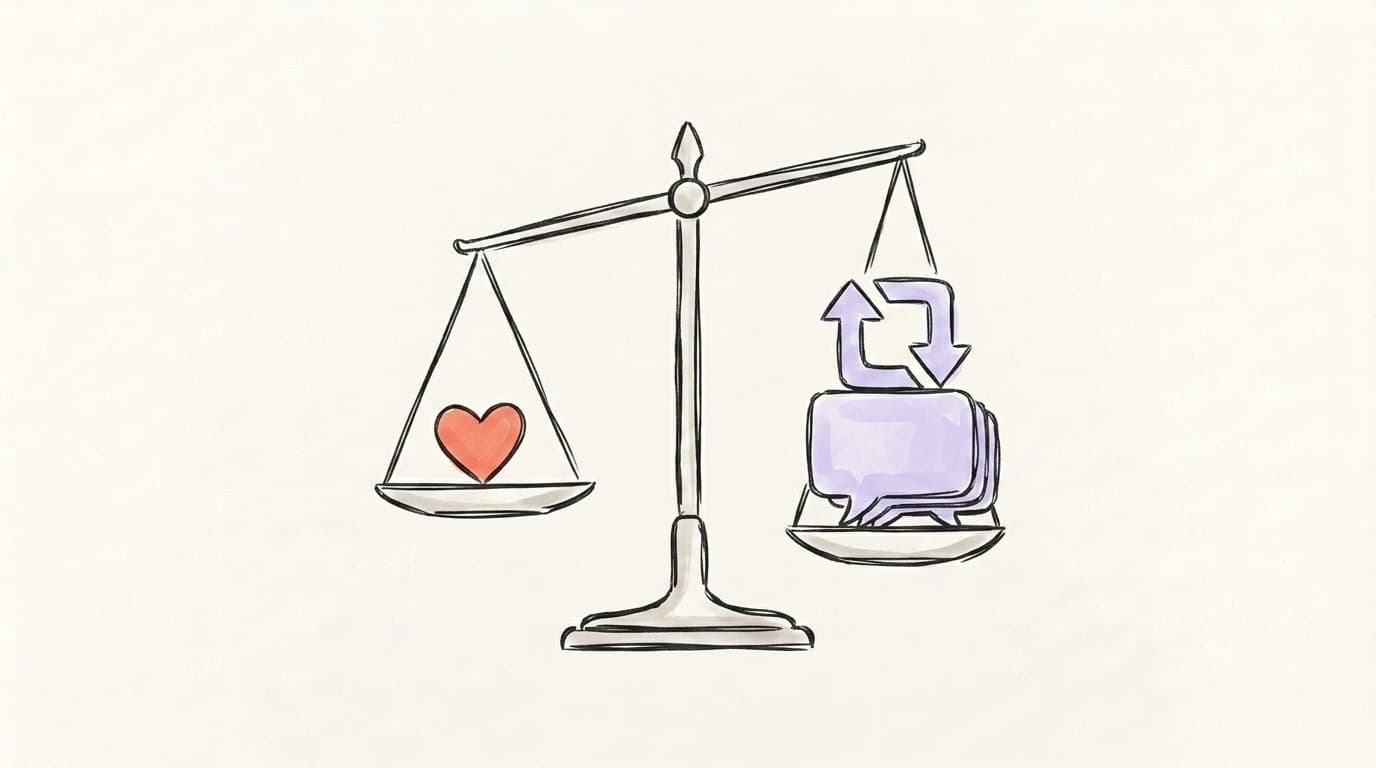
Likes are the weakest engagement signal on Threads — replies and reposts carry far more weight in the algorithm and in your actual reach, with reposts going furthest because they push your post into entirely new feeds outside your follower graph. That's why the like list is a poor performance metric. The ranking system reads the difficulty of an action as a proxy for content quality: likes are one tap with no thought, replies require typing, and reposts put a creator's own reputation on the line. So when you check who liked your post, you're looking at the lowest-effort tier of engagement — useful for identifying warm contacts and superfans, but a poor metric for judging whether the post actually worked at the algorithmic level.
According to public algorithm breakdowns, the feed ranking system prioritizes conversation quality over passive engagement. A post with 20 thoughtful replies will typically outperform a post with 200 likes and 3 replies. Reposts go even further — they push your post into entirely new feeds outside your follower graph. Likes don't.
There's a reason for this. Likes are the cheapest action a user can take — one tap, no thought, no public commitment. Replies require typing. Reposts put a creator's reputation on the line. So when you check who liked your post, you're looking at the lowest-effort tier of engagement. Useful for identifying warm contacts — not for judging whether the post worked.
How Do You Track Like Trends Over Time?
Open Threads Insights from your profile to see likes aggregated across all your posts, broken down by date range and ranked per individual post — it's the built-in dashboard for trend-spotting, and it now runs on both mobile and web at threads.com/insights. This is the only native way to compare like performance across days, weeks, or specific posts without manually counting hearts. The dashboard pulls in views, likes, replies, reposts, and follower growth together, so you can see whether your spikes are driven by passive scrolling, real engagement, or a single algorithmic boost. You can re-sort by any metric, scope to a date range, and tap into a single post for a per-post breakdown — including the split between followers and non-followers, which is the easiest way to spot when a post is reaching cold audiences.
On mobile, tap the insights icon at the top-left of your profile, pick a date range (last 7 days, 30 days, 90 days), and you'll see your top posts ranked by views, likes, and replies. You can sort that list by any of the three metrics, tap into any single post, and get a per-post breakdown of likes, reposts, replies, follower vs. non-follower interactions, and new follows attributed to that post.
What Insights does not give you: a list of who specifically liked across multiple posts, or a way to compare like-to-reply ratios across time. The dashboard is per-post and aggregated — there's no individual-user engagement history. For that, you need a third-party analytics layer that pulls the data into a queryable view.
How to Identify Your Top Engagers (And DM Them)
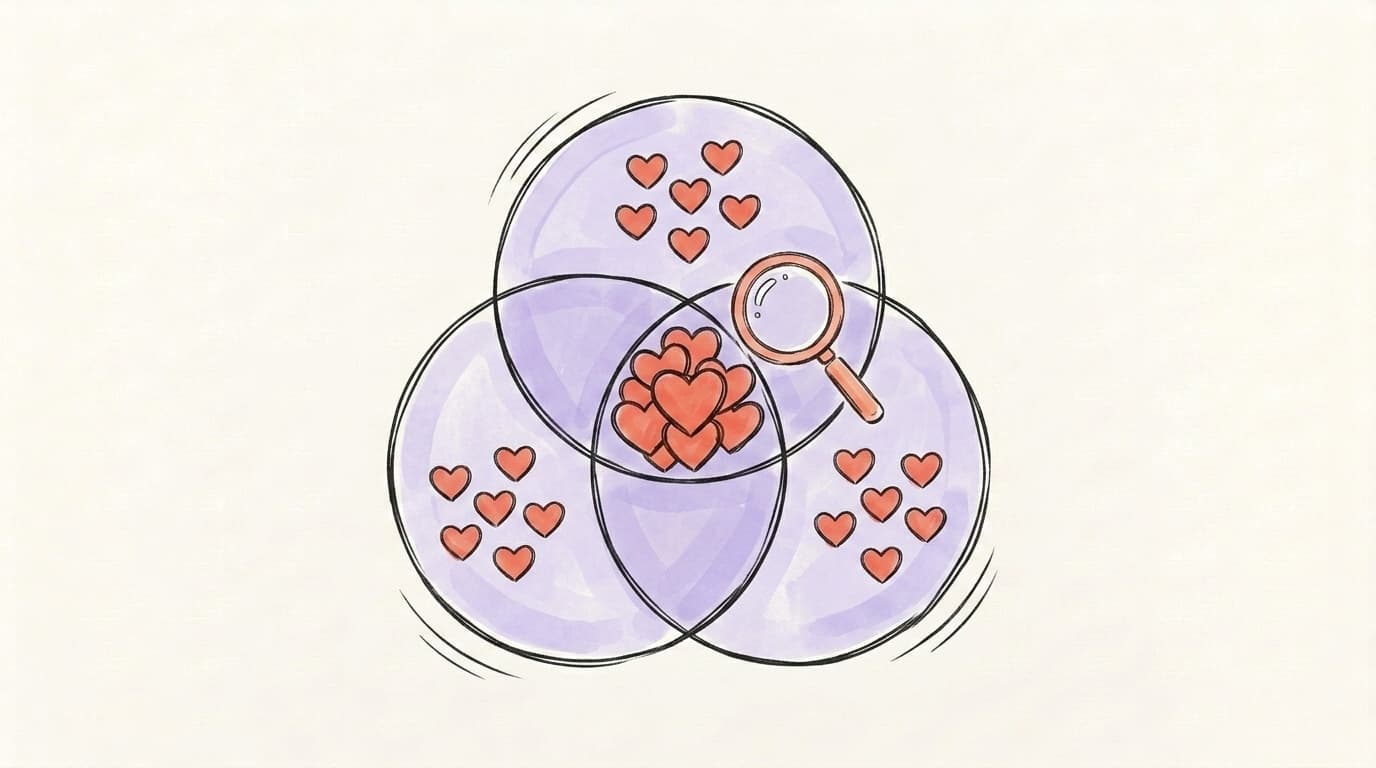
Cross-reference the like lists from your three or four best-performing posts to find the accounts that show up repeatedly — those are your real audience, and they're the most valuable list you can build on Threads. This takes about 15 minutes with a notes app or spreadsheet and surfaces the people who consistently choose to engage with your work, not the ones who happened to scroll past one viral post. Anyone who liked three or more of your posts in the last 30 days is, by definition, a fan — they didn't stumble in once, they actively follow what you publish. That's the audience worth investing one-to-one attention in: a thoughtful DM, a public reply to one of their posts, or a slot on a close-friends list. Native Insights won't surface this group for you, but the like lists already contain the raw data.
Here's the workflow. Pull up your top posts from the last 30 days in Insights. Open the like list on each one. Skim for usernames that repeat across two or more posts — a notes app or spreadsheet helps. The accounts that show up on three or more posts are your shortlist.
From there, you have options. DM them with a genuine thank-you or a question (low-effort, high-trust). Reply to one of their recent posts to start a public conversation. Add them to a close-friends list if you turn on Ghost Posts. The point is to convert passive likers into real relationships — and on Threads, that kind of one-to-one engagement tends to compound into more feed reach over time.
Going Beyond Likes With a Real Analytics Workflow
The native Threads Insights dashboard is fine for spot-checking individual posts, but it breaks down the moment you want to answer questions about patterns across posts, platforms, or audience segments. Native tools only see one platform at a time, one post at a time. They can tell you that a specific post got 240 likes; they can't tell you which post topics consistently earn the highest reply-to-like ratio, which followers engage with both your Threads and X posts in the same week, or which time-of-day window outperforms across formats on a rolling four-week basis. Insights also resets its sort order each session, doesn't let you export a CSV, and has no view that compares two date ranges side by side. Those are the questions and workflows worth optimizing against if you want to grow past sporadic spikes.
If you're posting regularly across Threads, X, and LinkedIn, a dedicated analytics layer pulls performance data into one view, surfaces which posts actually drove follower growth, and tells you which audience patterns repeat. For the algorithm context behind why replies matter so much more than likes, our Threads algorithm breakdown has the full ranking-factor explanation.
See What's Actually Working on Threads With Postory
Postory shows you which Threads posts win and the audience patterns behind them. Instead of clicking through like lists one post at a time, you get a single view of your best-performing content, the engagement signals that drove it, and the audience traits behind it — across Threads, X, and Bluesky. That's the difference between knowing who liked a post and knowing why a post worked.
Analyze your Threads with Postory — find the posts and patterns worth doubling down on.
FAQ
Q: Can people tell when I view their Threads likes list?
No. Threads does not send any notification when you tap into someone's like list. Browsing who liked a public post is fully anonymous, the same way it works on Instagram. The post owner also can't see a list of who viewed their like list.
Q: Why can I see my own like count but other people can't?
You've turned on "Hide like and share counts" for that post — either through the three-dot menu on the individual post, or through the global setting at Settings > Privacy. The count stays visible to you because you own the post. Toggle the same option off and the count returns publicly.
Q: How do I see posts I liked on Threads?
Go to your profile, tap the three-line menu in the top-right, then tap "Your likes." That opens a reverse-chronological feed of every post you've liked. This is private to you and isn't shown to anyone else, including the post authors.
Q: Can I export the list of people who liked my Threads post?
Not from the native app. Threads doesn't offer an export button on the like list, and the official API doesn't expose like-list data per post for non-business accounts. Third-party analytics tools can store aggregate engagement data, but a per-post list of likers has to be copied manually.
Q: How is the like list ordered on Threads?
Newest first by default. The most recent like appears at the top, working backward through time as you scroll. There's no way to re-sort the list by username, follower count, or whether they follow you back.
Q: Do likes count for less on Threads than on X or Instagram?
Yes, in terms of algorithmic reach. The Threads algorithm weights replies and reposts more heavily than likes when deciding feed distribution. A post with strong reply velocity in the first 30-60 minutes will typically outperform a post that accumulates only likes, even if the like count looks higher. Likes still help — they just aren't the main signal.
Q: Does hiding likes on Threads also hide them on Instagram?
The global privacy setting carries over between the two apps because they share one account graph. But the per-post hide (three-dot menu on a single post) is post-specific — hiding likes on one Threads post doesn't affect any of your Instagram posts.
Q: Can I see who liked someone else's post on Threads?
Yes, if the post owner hasn't hidden the like count. Tap into the post, tap the like number, and you'll see the same list anyone else can see. There's no friend-of-friend restriction — public posts have public like lists by default.
Related articles
The Threads Profile Audit Checklist (15 Minutes)
A 12-point, 15-minute audit you can run on your Threads profile right now — bio, banner, pinned post, posting cadence, and more.
May 17, 2026
Threads Posting Frequency: How Often Is Too Often?
The honest, data-backed answer to how often you should post on Threads — by stage, by niche, and built so you don't burn out.
May 22, 2026
Cross-Post From X to Threads Without Losing Reach
Copy-pasting a tweet straight into Threads gets ignored on both. Here are the six edits that make one idea land natively on X and Threads.
May 22, 2026