
LinkedIn Account Restricted: Why It Happens & How to Fix It

A LinkedIn account restricted notice usually comes from excessive activity, suspected automation, fake profile signals, or policy violations. Automated flags often clear on their own within a few hours to 24 hours; restrictions that require identity verification typically lift within 1-3 days. Permanent restrictions have no stated end date — the routes back begin with the instructions LinkedIn shows when you sign in, and there's no guaranteed outcome.
You log in to LinkedIn and instead of your feed, you see a red banner: your account is restricted. No warning, no clear reason, and suddenly your network, messages, and job history are locked behind a wall.
It happens to a lot of people — including ones who didn't do anything obviously wrong. This guide walks through why LinkedIn restricts accounts, how to fix it, and what to expect at each step.
Why Is My LinkedIn Account Restricted? (7 Common Reasons)
If your LinkedIn account was restricted, it's almost always because LinkedIn's automated systems flagged something in your behavior or profile — a burst of connection requests, a third-party automation tool, a policy violation in a post, or unusual login activity. LinkedIn doesn't usually tell you which trigger fired. You just get a generic restriction notice and a path to verify your identity or appeal, which leaves most people guessing about what they actually did wrong. Even legitimate users get caught when they go on a connection spree, install a growth extension, or log in from a VPN on a new device. The good news: most of these restrictions are recoverable if you respond quickly and stop the flagged behavior. The triggers below cover the overwhelming majority of cases LinkedIn flags, and knowing which one likely fired makes your recovery (and your appeal) much more effective.
The 7 most common triggers:
- Too many connection requests too fast — sending dozens in an hour looks automated
- Low connection acceptance rate — lots of ignored or "I don't know this person" responses
- Using automation tools — browser extensions, scrapers, or bots that mimic activity
- Fake or mismatched profile details — pseudonyms, stock photos, fake job titles
- Policy violations in posts or messages — spam, harassment, misinformation, scams
- Suspicious login activity — new location, new device, or VPN use
- Member reports — enough people flag your profile or messages as spam
What's the Difference Between Temporary and Permanent LinkedIn Restrictions?
LinkedIn restrictions come in two flavors, and the difference matters a lot. A temporarily restricted LinkedIn account is a short-term hold — usually triggered by behavior that looks suspicious but isn't necessarily a hard policy violation. You'll typically be asked to verify your identity, confirm your email or phone, or simply wait it out. A permanently restricted account means LinkedIn has decided you broke their User Agreement in a way that can't be easily undone — repeated violations, serious abuse, fraud, or heavy automation use. A permanent restriction blocks access to your account and its features. If you believe the restriction is a mistake, follow the instructions shown when you sign in, including any review or identity-verification steps offered.
AI that learns your voice
Posts that actually sound like you
Postory's AI writes drafts in your voice — not generic AI mush — so you publish faster and still sound human.
| Temporary | Permanent | |
|---|---|---|
| Trigger | Suspicious activity, automation, unusual logins | Repeat violations, fraud, serious policy breach |
| Duration | Hours to a few days | Indefinite |
| Fix | Verify identity, wait, or appeal | Appeal (outcome not guaranteed) |
| Account data | Preserved | Usually lost |
How Do You Fix a Temporarily Restricted LinkedIn Account?
If LinkedIn restricted your account temporarily, the fix is usually straightforward but requires patience. First, don't panic-click every option — that can make things worse. Read the restriction notice carefully: LinkedIn will tell you whether you need to verify your identity, confirm contact info, or just wait. If it's an automated flag from aggressive activity, the restriction often lifts in a few hours on its own. If identity verification is required, follow the prompt — it's handled by Persona, LinkedIn's verification partner. Stop using any third-party LinkedIn automation tools immediately. And whatever you do, don't create a second account to "work around" it — LinkedIn's User Agreement prohibits duplicate accounts, and the platform's trust systems commonly flag accounts tied to the same device, IP, or identity — which can turn a temporary problem into a permanent one fast.
Step-by-step recovery:
- Read the exact restriction notice. It tells you which path to take.
- Verify contact info — confirm your email and phone if prompted.
- Complete identity verification if asked (details in the next section).
- Pause all automation and outreach tools. Uninstall browser extensions.
- Wait. Don't keep logging in and out — that can extend the hold.
- Contact LinkedIn support if nothing resolves in 48 hours — that contact route requires sign-in.
Here's a quick walkthrough of the same recovery path from Ismina at Magic Post:
What Does LinkedIn Identity Verification Require?
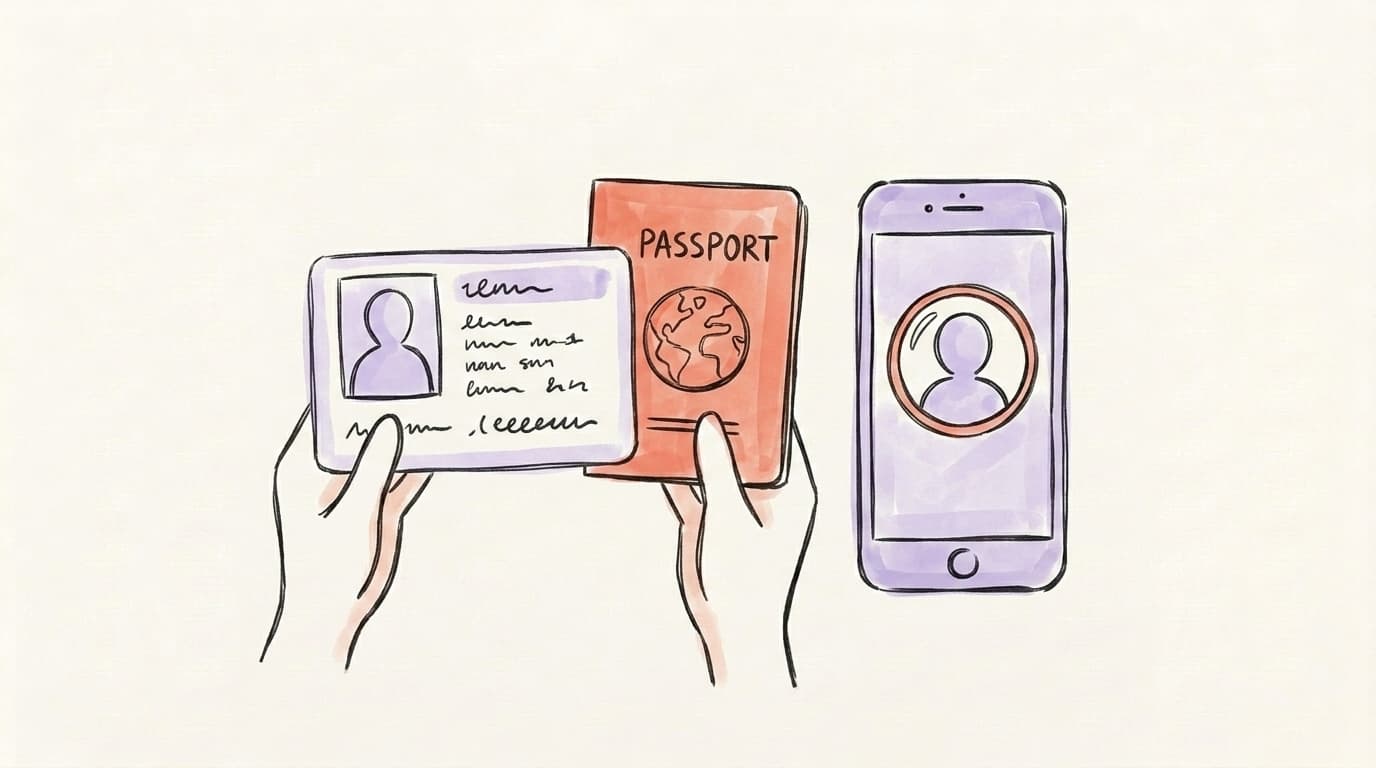
LinkedIn's identity verification is handled by Persona, a third-party identity verification service. When prompted, you'll be asked to upload a clear photo of a government-issued ID — a driver's license, passport, or national ID card — and in many cases, a selfie so Persona can match your face to the ID photo. According to LinkedIn's identity verification help page, all parts of the ID must be clear, legible, and unexpired. If you don't want to submit an ID, LinkedIn offers an alternative: download their Affidavit of Identity, sign it in front of a notary public, and scan it — then send it through LinkedIn Support (that contact route requires sign-in; the support section below covers how to reach it). Verification usually takes a few hours to a few days depending on volume. Once approved, you'll get an email with instructions to access your account again.
Tips that speed it up:
- Use the same name on your ID as on your LinkedIn profile
- Photograph the ID on a flat, dark surface in natural light
- Make sure the full ID is in frame — no cropped corners
- Don't cover any part with fingers
- Use a recent, well-lit selfie
How Do You Contact LinkedIn Support About a Restriction?
If identity verification doesn't resolve your restriction — or the restriction doesn't offer a verification path — your next move is LinkedIn Support. Follow the instructions shown when you try to sign in to your restricted account. If you can sign in to the LinkedIn Help Center, choose Contact us, then Chat with support; that contact route requires sign-in. You'll need a working email address and a description of the issue. Be clear, short, and polite: state that your account has been restricted, that you haven't violated policies knowingly, and that you'd like to appeal. Don't send multiple tickets — that pushes your case to the back of the queue. Response times range from 24 hours to 2 weeks depending on case volume. LinkedIn does not offer telephone customer support, including for Premium members. Use its official online support options.
What to include in your appeal:
- Your full name and the email on the account
- Profile URL (if you can still see it)
- A clear, honest explanation of what you were doing
- Confirmation that you've stopped any flagged behavior
- A commitment to follow the Professional Community Policies
How Long Does a LinkedIn Restriction Last?
How long a temporary restriction lasts depends on what triggered it. A mild automated flag (too many connection requests, an odd login) often clears in a few hours to 24 hours without any action on your part. A restriction that asks for identity verification usually resolves within 1-3 days after you submit clean documents. An appeal for a more serious flag can take up to 2 weeks to hear back on. Permanent restrictions have no stated end date — LinkedIn says access may be restricted temporarily or indefinitely, and the routes back it publishes all begin with signing in and following its on-screen prompts. During any of these windows, don't create a second account, don't log in repeatedly, and don't message LinkedIn on social media demanding a response. Patience is genuinely the fastest path.
How Do You Avoid LinkedIn Restrictions in the First Place?
The best fix is never getting restricted at all. LinkedIn's automated systems reward slow, human, consistent behavior — and punish anything that looks scaled, scraped, or fake. The short version: use your real name and a real photo, send connection requests at a pace a real person could maintain (not 100 in an hour), skip the sketchy Chrome extensions that promise "LinkedIn growth on autopilot", keep your content inside the Professional Community Policies, and post from stable devices and locations. If you want to scale your posting without scaling your risk, use a tool that publishes through LinkedIn's official API rather than one that automates clicks in your browser — browser automation is one of the most commonly cited causes of restrictions among active users. And give your account time to warm up: new accounts that immediately start sending hundreds of connection requests get flagged fastest.
Best practices to stay unrestricted:
- Send no more than 20-30 connection requests a day, with a personal note
- Only connect with people you actually recognize or have clear context for
- Use one account, one device (or at least stable devices)
- Avoid browser automation tools — use official-API schedulers instead
- Don't post the same message to dozens of people in InMail
- Keep job history accurate and up to date on your profile
For more on posting patterns that build reach without triggering flags, see our guides on what to post on LinkedIn and how often to post on social media.
Staying Compliant — On LinkedIn and Everywhere Else
Most LinkedIn restrictions come from tools that hammer the platform with automated clicks or connection requests. The rule that keeps you safe is simple and it applies everywhere: use tools that publish through a platform's official API, and avoid anything that automates clicking, viewing, or connecting on your behalf.
If you just got your account back, keep LinkedIn itself manual or on its native scheduler for a while — the lowest-risk footprint there is no third-party tool at all. For your other platforms, Postory publishes to X, Threads, and Bluesky through each platform's official API, with a scheduler and AI post writing — no browser automation anywhere in the stack.
Try Postory free — API-only publishing for X, Threads, and Bluesky, with no automation footprint.
FAQ
Q: Why was my LinkedIn account restricted for no reason?
There's almost always a reason — it's just not always visible to you. The most common silent triggers are fast connection activity, using a browser automation extension (even one you forgot was installed), logging in from a new country or VPN, or a few members reporting a post or message. Check your recent activity for anything that could look automated.
Q: Can LinkedIn restrict my account permanently?
Yes. Permanent restrictions happen after repeat violations, fraud, impersonation, or large-scale automation. A permanent restriction blocks access to your account and its features. If you believe the restriction is a mistake, follow the review or verification instructions shown when you sign in.
Q: How can I reopen my restricted LinkedIn account?
Start by reading the restriction notice — it tells you whether to verify your identity, confirm contact info, or appeal. Most temporary restrictions lift after Persona identity verification, which takes 1-3 days. If that doesn't work, appeal through the LinkedIn Help Center — choose Contact us; that contact route requires sign-in.
Q: Does LinkedIn tell you why your account was restricted?
Rarely in detail. You'll usually see a generic notice pointing to their User Agreement or Professional Community Policies. If you appeal through support, you can sometimes get more specific feedback — but LinkedIn doesn't share exact internal flags.
Q: How long does LinkedIn identity verification take?
Usually a few hours to three days. Identity checks go through Persona, and the wait depends on their queue and whether your ID photo is clear. Blurry or partial IDs get kicked back and restart the clock, so take your time with the upload.
Q: Will I lose my connections if LinkedIn restricts my account?
Temporary restrictions preserve your connections, messages, and profile — you just can't access them until the hold lifts. Permanent restrictions usually mean the account and its data become inaccessible, which is why appealing a permanent restriction is much harder than recovering from a temporary one.
Q: Can I use a new LinkedIn account if my old one is restricted?
Don't create a new account to get around the restriction. LinkedIn's User Agreement requires one account in your real name and says you must not already be restricted from using its services. Follow the instructions for your existing restricted account instead.
Related articles
X Account Locked vs Restricted vs Suspended: How to Unlock
Is your Twitter account restricted, locked or suspended on X? Tell which one from the screen you're seeing — and how to unlock yours.
Sep 8, 2026
X Account Suspended for "Inauthentic Behavior": What to Do
Your X account suspended for inauthentic behavior? What the label covers, why the filter misfires, and what this suspension needs.
Sep 8, 2026
Permanently in Read-Only Mode on X: What It Actually Means
Your screen says your account is permanently in read-only mode. Here's what X actually did — and what "permanently" changes.
Sep 5, 2026