
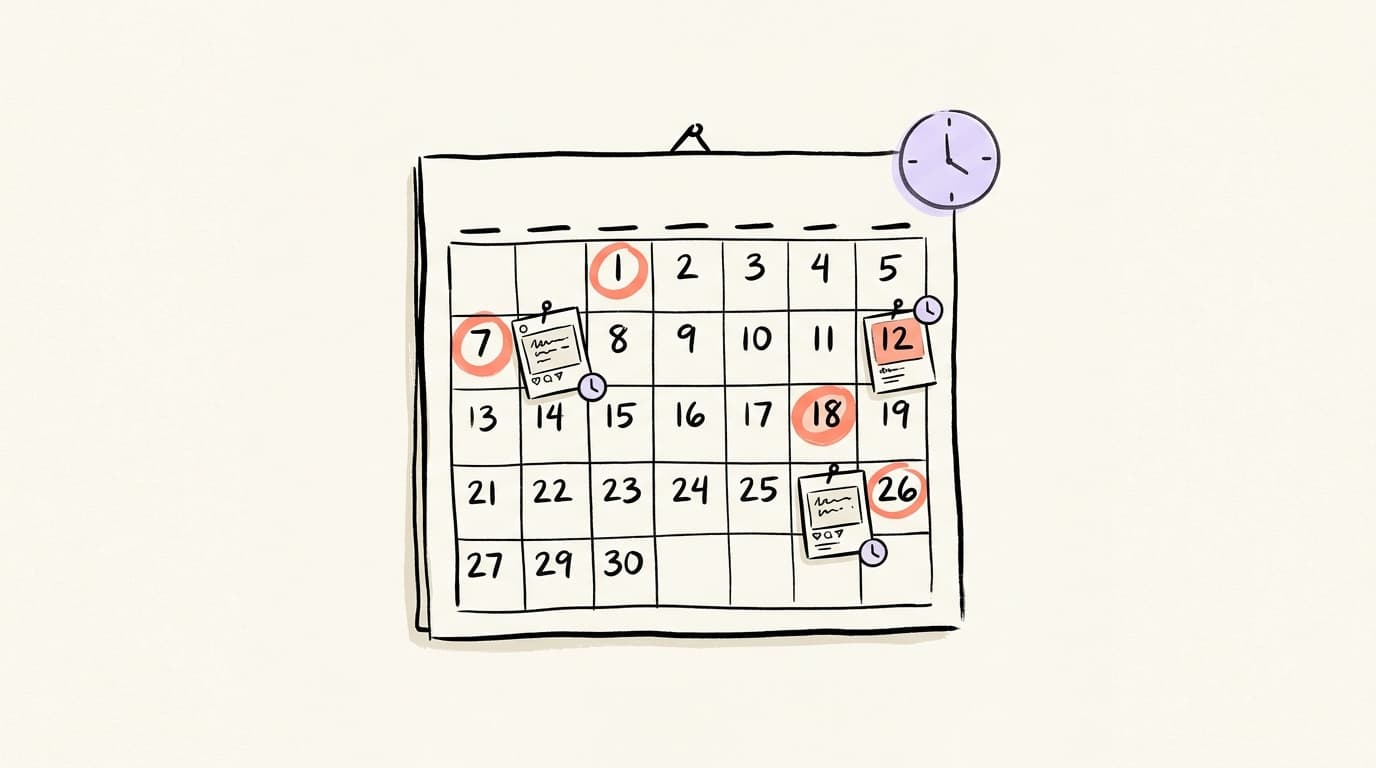
How to Schedule Social Media Posts (LinkedIn, X, Threads, Instagram)

Every major platform (LinkedIn, X, Threads, Instagram, Facebook) has a free native scheduler. They work fine for one platform — but the moment you post to two or three, you'll want a single dashboard instead.
If you post live every day, you're also writing live every day — and that constant context-switch is what scheduling actually fixes.
This guide covers how to schedule social media posts on each platform natively (free), the best tools when native isn't enough, and the workflow that actually keeps you consistent without eating your week.
Why Should You Schedule Social Media Posts Instead of Posting Live?
Scheduling social media posts buys you back the biggest thing live-posting steals: attention. When you batch-write an entire week of posts on Sunday and schedule them, you write better (you're in one mental mode), you post at better times (not whenever you happened to open the app), and you don't have to interrupt deep work to hit publish. It also protects consistency when travel, sickness, or a bad week would otherwise create a two-week gap in your feed — and in our experience working with text-first creators on LinkedIn, X, and Threads, a steady cadence outperforms sporadic bursts every time. Scheduling is about separating the writing task from the publishing task so each one gets your full focus. In our own workflow, moving from live-posting to a scheduled batch routine roughly doubled the volume we could sustain — publishing stops being a daily decision, so it stops being the thing that slips.
The trade-off: you lose the ability to react to breaking news or trending conversations. The fix is simple — schedule your evergreen content and leave a few slots open for live, reactive posts each week.
How Do You Schedule Posts on LinkedIn?
LinkedIn has a built-in native scheduler that works on both personal profiles and Company Pages, and it's completely free. Click "Start a post" on your homepage, write your post, then click the small clock icon in the lower-right of the composer. Pick a date and time — per LinkedIn Help, it must be within 10 minutes to 3 months from the current time — click Next, then click Schedule. To view or edit scheduled posts, click "View all scheduled posts" from the same pop-up; you can modify the time or edit the content from there. The native scheduler is enough for most solo creators, but it has two real limits: you can't schedule certain post types (polls, some event/article formats), and there's no bulk upload, queue, or analytics. If you're scheduling more than a few posts a week or want to see your whole month at once, you'll hit the ceiling fast.
Post at the right time
Schedule across X & Threads
Queue your posts once and Postory publishes them at the best times — no more copy-pasting between apps.
For detailed timing advice, see our guide on the best time to post on LinkedIn — the native scheduler doesn't suggest times, so you're picking them yourself.
How Do You Schedule Posts on X (Twitter)?
X has a native scheduler on desktop that's free for every account — no Premium required for the basics. Open the post composer on x.com, write your post, click the small calendar icon at the bottom of the composer, pick a date and time, hit Confirm, then click Schedule. You can schedule posts up to 18 months ahead, which is useful for seasonal or campaign content. To view and edit what's scheduled, go to the composer and click the calendar icon → "Scheduled posts". The catch: native scheduling is desktop-only (no mobile), works one post at a time (no bulk upload), and doesn't handle threads well — scheduling a multi-post thread as a single unit is gated behind X Premium+ ($40/month as of March 2026, after X Pro was moved out of the $8 Premium tier). If you write threads regularly, the free native scheduler will feel painful quickly. Most serious X creators either upgrade to Premium+ or use a dedicated thread tool like Typefully.
How Do You Schedule Posts on Threads?
Threads rolled out native post scheduling to app users in 2024, and as of April 2026 it's available directly inside the Threads app on both mobile and web. To schedule, open the composer, write your post, tap the three-dot menu, select "Schedule," pick a date and time, then tap Schedule. It works for text posts and supports media, but not for replies or quote posts. One recent change worth noting: Meta Business Suite now supports Threads on desktop (Meta added Threads management to the Business Suite in February 2026), so you can schedule Threads alongside Instagram and Facebook from one dashboard — though the analytics are still basic (likes and replies, not much more). Threads' own native scheduler is fine for simple one-off posts but lacks queue management, deeper analytics, and cross-posting to X (which is the most common companion platform for text-first creators), so most multi-platform creators still reach for a third-party tool.
How Do You Schedule Posts on Instagram and Facebook?
Instagram and Facebook are the easiest case because Meta handles both through one dashboard: Meta Business Suite. Your Instagram must be a professional account (Creator or Business) linked to a Facebook Page. Go to business.facebook.com, click "Create Post," select which platform(s) to post to, upload your media, then scroll to scheduling and set a date/time up to 75 days ahead. You can schedule up to 25 posts or Reels per day per account. The main limits: in-app Story scheduling is still rolling out — Instagram began testing it in early 2026 and opened content scheduling to all public accounts in March 2026, but Story scheduling specifically still isn't universal in-app (Business Suite remains the reliable path for Stories). You also can't schedule collaborative posts, and there's no bulk CSV upload. Business Suite is solid for Meta-only workflows but becomes frustrating the moment you want LinkedIn or X in the same view — which, for most creators, is immediately.

What Are the Best Free Tools to Schedule Social Media Posts for Free?
If you want to schedule social media posts for free across multiple platforms from one dashboard, you have three options worth considering in 2026, and each has a different sweet spot. Buffer offers a free plan that covers 3 channels and 10 scheduled posts per channel — enough to test the workflow, not enough for a serious content cadence. Metricool has a free tier with one brand connection and 50 scheduled posts per month, with a stronger calendar view. Hootsuite no longer offers a free plan. Beyond those, most third-party tools fall into paid-only territory starting at $6–$19/month. The real question isn't "which has the biggest free plan" — it's whether the tool covers your platforms. Taplio and Typefully are great for LinkedIn and X respectively but don't handle the others. Multi-platform schedulers like Buffer and Metricool cover the spread but their AI writing features and thread support vary widely.
Here's an honest comparison of the main schedulers from creators who actually tested them at scale:
For a longer breakdown of free options and what each one gives up, see our best free social media schedulers roundup.
What's the Ideal Social Media Scheduling Workflow?
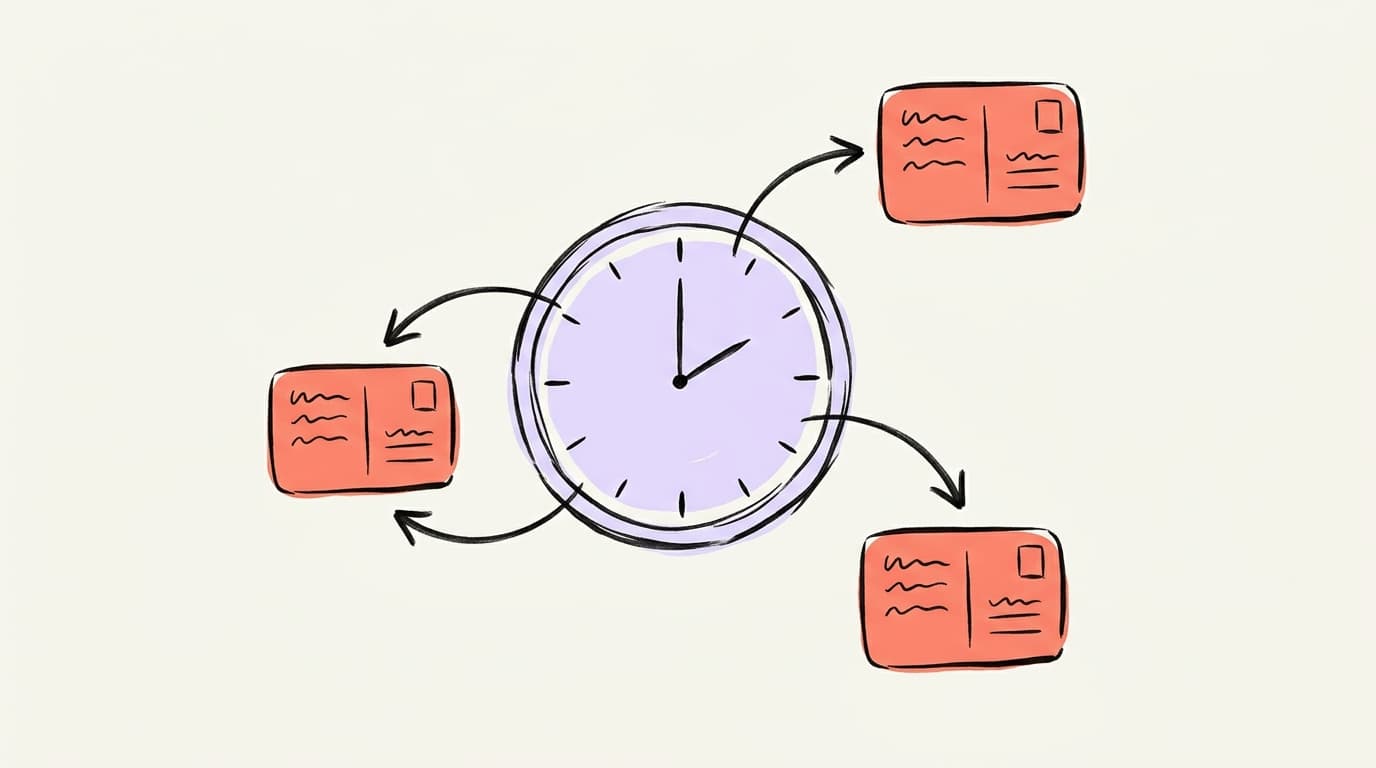
The workflow that keeps creators consistent without burning them out runs in four stages, and the key insight is that each stage happens on a different day so your brain isn't doing two jobs at once. Plan on Sunday: sketch 10–15 post ideas for the week into a lightweight content calendar, grouped by theme. Create on Monday or Tuesday in one 90-minute block: write every post for the week in a single sitting while you're in writing mode. Schedule right after you create: drop everything into your scheduler, pick platform-specific times, and walk away. Analyze on Friday: look at what performed, note the patterns, feed the winners back into next Sunday's planning. This rhythm turns social media from a daily anxiety into a weekly task, and it's the shape most sustainable creator workflows end up converging on.
The biggest mistake people make is skipping the plan stage and creating on the fly — it's the reason most "I'll just post every day" attempts die in week two.
If you don't have a calendar yet, start with our content calendar guide — it walks through the plan stage in detail.
Start scheduling posts across LinkedIn, X, and Threads with Postory
Schedule posts across LinkedIn, X, and Threads from one dashboard. Postory is built specifically for text-first creators who post on all three — no switching between Buffer, Typefully, and the native Threads app, and no piecing together Meta Business Suite with separate LinkedIn and X tabs.
Plan your week, write your posts with AI help when you need it, and schedule them across every platform in one place.
Try Postory free — one dashboard for LinkedIn, X, and Threads scheduling.
FAQ
Q: How do I schedule social media posts for free?
Every major platform has a free native scheduler: LinkedIn's clock icon in the composer, X's calendar icon on desktop, Threads' three-dot menu, and Meta Business Suite for Instagram and Facebook. They're enough for simple single-platform use. For multi-platform scheduling for free, Buffer's free plan covers 3 channels and 10 posts per channel, and Metricool's free tier covers 1 brand with 50 scheduled posts per month.
Q: Can I schedule posts on Threads from Meta Business Suite?
Yes, now you can. Meta added Threads management to Business Suite on desktop in February 2026, so you can schedule Threads alongside Instagram and Facebook from one dashboard. Analytics inside Business Suite for Threads are still basic (likes and replies), so many creators keep using Threads' own in-app scheduler or a third-party tool like Buffer or Metricool for deeper insights.
Q: How far in advance can you schedule social media posts?
It depends on the platform. LinkedIn allows up to 3 months ahead, X allows up to 18 months, Threads allows several weeks, and Meta Business Suite caps Instagram and Facebook at 75 days. Most third-party schedulers don't impose additional limits beyond what each platform allows via its API.
Q: Does scheduling social media posts hurt reach?
No. This was a myth from years ago when platforms allegedly downranked third-party API posts — all current platform documentation confirms scheduled posts are treated identically to live posts in their algorithms. What does hurt reach is posting at times when your audience isn't active, which is actually easier to fix when you're scheduling deliberately rather than posting whenever you happen to open the app.
Q: How many posts should I schedule per week?
For most solo creators, 3–5 posts per week per platform is the sustainable range. More than that rarely improves reach and often dilutes quality. The goal is a cadence you can hold for a full year, not a two-week sprint that burns you out.
Q: What's better: native scheduling or a third-party tool?
Native is free and fine if you post on one platform. A third-party scheduler pays for itself the moment you post on two or more, because switching between several separate apps (LinkedIn, X, Threads, Meta Business Suite) adds up to more time than the tool costs. The breakeven is usually around 5–10 scheduled posts per week across two or more platforms.
Q: Can I edit a scheduled post after scheduling it?
Yes, on every major platform. LinkedIn, X, Threads, and Meta Business Suite all let you edit the text, media, or scheduled time before the post publishes. Most third-party tools also support edits until the moment of publication. Once the post goes live, editing depends on the platform (LinkedIn and Threads allow post-publish edits; X allows it for Premium users).
Q: Should I schedule the exact same post on every platform?
No — and this is the single biggest mistake multi-platform creators make. A LinkedIn post is usually 3–5x longer than a tweet, Threads favors a more casual voice, and Instagram needs an image or it won't post. Write the core idea once, then rewrite it for each platform's format. Schedulers with per-platform post customization (rather than just one caption across all) make this much less painful.
Related articles
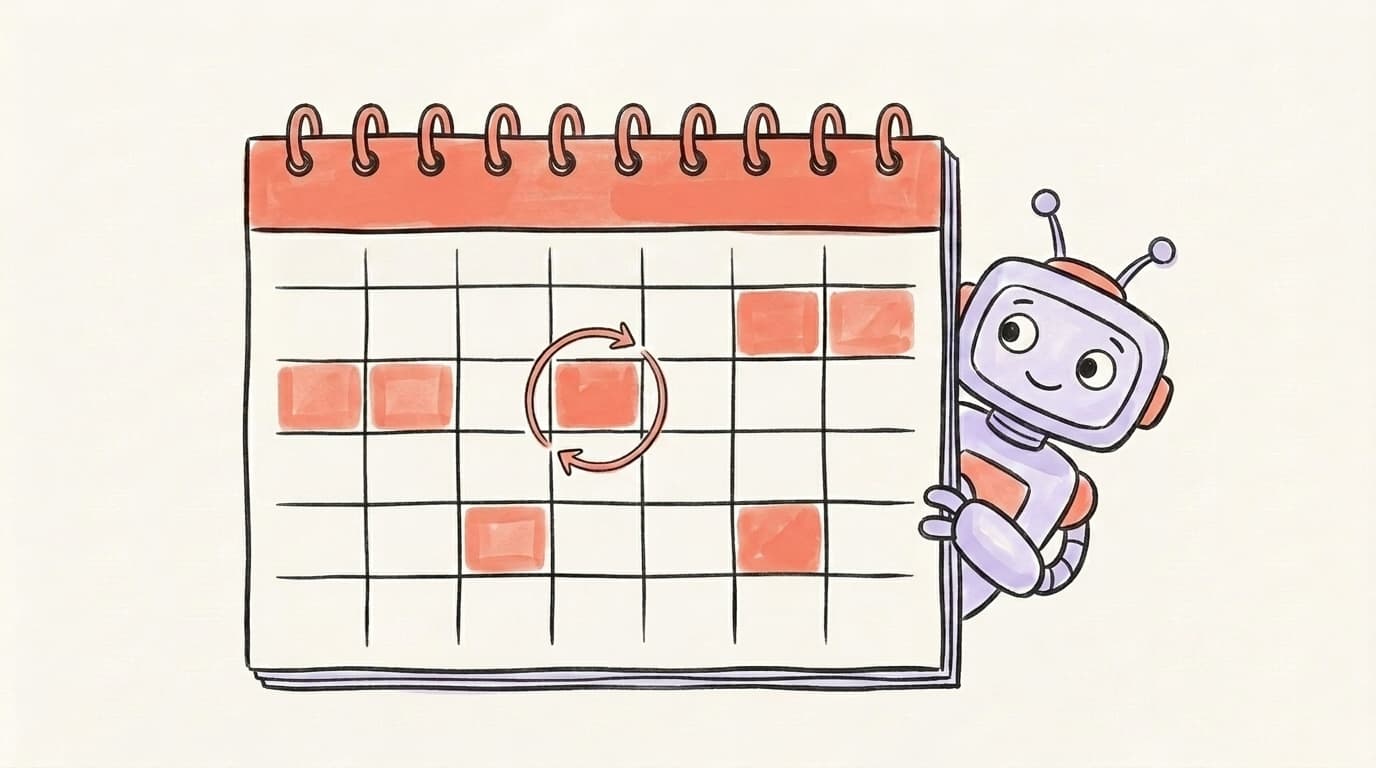
How to Schedule Recurring Social Posts (Without Looking Like a Bot)
Recurring posts have a bad reputation because most people do them badly. Here's how to schedule social media posts on repeat without looking automated.
May 18, 2026
Typefully Alternative: 6 Cross-Platform Options for Creators
Six honest Typefully alternatives compared — what each is genuinely best at, plus a full feature-and-price table to match the tool to your workflow.
Jul 18, 2026

Hypefury Alternative: 6 Tools That Do More for Less
Hypefury is powerful but pricey — and it still won't write your posts. Here are 6 Hypefury alternatives that do more for X and Threads, for less.
Jul 18, 2026