

How to Turn Off Recommended Tweets on X

Switch from For You to Following to stop browsing X's recommended feed. Turn off recommendation push and email notifications separately; neither setting changes the other.
Looking for how to turn off recommended tweets? First, identify where they're appearing. X puts suggested posts in its For You feed, sends some as phone alerts, and may email suggestions. Each has a different control. This guide shows what you can switch off, what you can only reduce, and where the current settings live.
Can you turn off recommended tweets completely?
You can leave the recommended For You feed, but X doesn't offer a master switch that removes every suggestion everywhere. X says For You includes posts from accounts and Topics you follow alongside personalized recommendations. Its separate Following timeline shows posts from accounts you follow. The two tabs are available on the web and in the mobile apps. X's timeline guide explains the distinction.
That difference matters because a recommended post in For You is not the same as a recommendation notification. Turning off phone alerts won't clean up For You. Switching to Following won't stop an alert that X sends to your phone. If you want both changes, use both sets of steps below.
Following is the closest built-in option to a feed without posts selected from outside your network. It is still a normal X timeline: you can encounter reposts from accounts you follow, and it is not a guarantee that every item will feel relevant. For You remains available as another tab when you want to browse it. X says the timeline open when you leave the app is the one you return to. X's For You documentation describes this behavior.
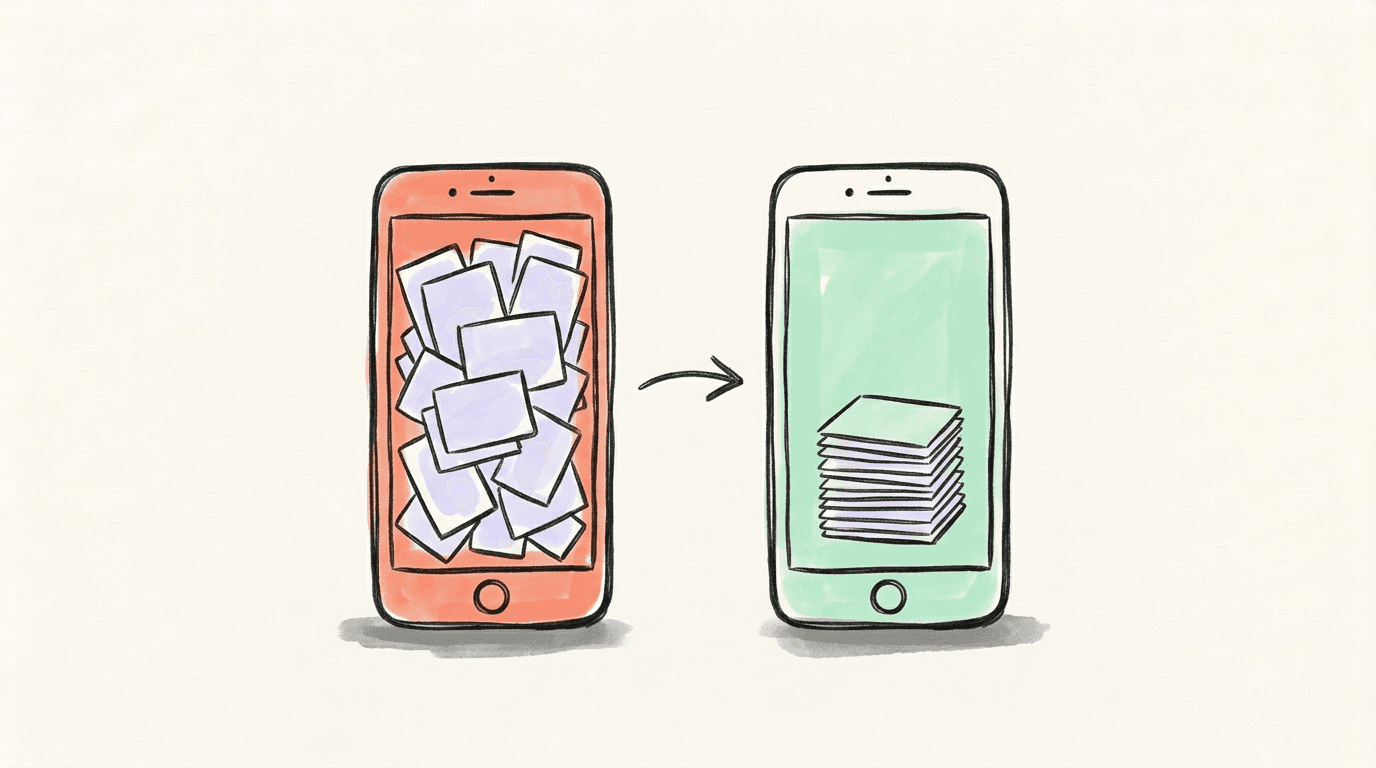
How to turn off recommended tweets in your feed
Choose Following whenever you want posts from accounts you follow instead of the recommended For You feed. On x.com, click Following at the top of Home. In the iOS or Android app, tap or swipe to Following. X documents the same tab choice for web and mobile; you don't need a hidden setting or a browser extension. See X's timeline instructions.
If you still want to use For You occasionally, you can reduce particular suggestions there:
- Open the menu on a post you don't want to see more of and choose Not interested in this post, when that option appears.
- If the recommendation is attached to a Topic, choose Not interested in this Topic or unfollow the Topic.
- Repeat this for genuinely unwanted subjects. X says this feedback is a signal to recommend less of that kind of content; it isn't a promise that the subject will disappear completely. X's recommendations guide describes both feedback options.
Use a List when your goal is a small, deliberate reading set. Add the accounts you care about to a List and open that List's timeline. X says a List timeline shows posts from only the accounts on it. You can pin a List beside For You and Following for quicker access, but pinning it doesn't replace either Home tab or change notification settings. X's Lists guide covers creating, viewing and pinning Lists.
How to turn off recommendation notifications
On iPhone or Android, open X → Settings and privacy → Notifications → Preferences → Push notifications. Find the recommendation category and switch off the recommendation alerts you don't want. X lists Recommendations as an optional push notification type and documents this settings path for both mobile apps. Some screens may group several recommendations under a heading, so check the individual toggles you see rather than assuming one switch controls every alert. X's mobile notification guide provides the path.
This changes push alerts, the messages delivered to your phone outside the app. It doesn't remove recommended posts from For You, and it isn't a universal filter for everything shown inside the Notifications tab. X treats recommendations in the timeline, notification tab and push delivery as separate surfaces. Its timeline guide names all three.
For email suggestions, go to Settings and privacy → Notifications → Email notifications on x.com. Turn email notifications off entirely, or review the boxes under Activity from your network and Updates from X and switch off the types you don't want. X's guide does not name a separate recommendation-email toggle. Changes save automatically, and an unsubscribe link in a particular X email can disable that email type. X's email preference guide explains these options.
If you're receiving browser pop-ups, treat those as a further channel. Check X's web or browser notification preferences and your browser's site permissions. Disabling a browser alert does not change mobile push, email, or the posts selected for For You. X's browser notification guide distinguishes web pop-ups from notifications outside x.com.
What to do if recommendations still appear
First, check which surface still contains them. If you're viewing For You, select Following; a muted alert category cannot remove feed posts. If your phone still lights up, revisit Push notifications. If the suggestion arrives by email, change Email notifications. This quick diagnosis prevents changing the wrong setting repeatedly.
For a repeated topic or phrase, mute the relevant word or hashtag in X's muted words settings and enable the Home timeline option. X says muted words can filter the Home timeline and notifications, but they still appear in search. It also says some notifications from accounts whose post alerts you explicitly enabled can still arrive. Muting is a precise filter for a subject, not a master off switch for recommendations. X's advanced muting guide explains those limits.
For a repeated account, mute it if you want its posts out of your timeline without blocking or unfollowing it. If you follow the account and simply don't want its posts in Following, unfollowing is the more direct choice. X documents what muting hides and the cases where replies or mentions can still appear. Read X's account muting guide.
Finally, inspect your followed Topics. Unfollowing a Topic removes that explicit interest signal, but X can still infer interests from your activity. X says Topics you view or like may inform suggestions, and its Topics settings let you mark topics as uninteresting or deselect interests. X's Topics guide covers those controls. If you'd like to understand the recommendation system itself, our guide to the X algorithm goes deeper into how the feed is assembled.
Keep a quieter X routine
Start with the change that matches your problem: Following for the feed, Push notifications for phone alerts, Email notifications for inbox messages. A pinned List gives you a narrower reading space. Then use Not interested, Topic controls, and muting only for the subjects or accounts that keep resurfacing. These tools work at different levels, so the combination is more useful than hunting for a single nonexistent setting.
FAQ
Q: Can I permanently disable the For You tab on X?
X's documented control is switching between For You and Following, not deleting the For You tab. Following shows posts from accounts you follow. You can keep using that tab for your everyday reading and open For You only when you choose.
Q: Does Following show only original posts from people I follow?
X describes Following as posts from accounts you follow. Those accounts may repost other people's content, so the feed is narrower than For You but still includes what the accounts you follow share.
Q: Will turning off recommendation notifications remove suggested posts from my feed?
No. Push notifications and the For You timeline are separate parts of X. Turn off recommendation push alerts in notification preferences, then switch to Following if you want a feed without X's out-of-network recommendations.
Q: How do I stop recommendation emails from X?
Open Settings and privacy, then Notifications and Email notifications. Disable all email notifications, or review the boxes under Activity from your network and Updates from X and turn off the types you don't want. X also lets you unsubscribe from a particular email type through that email's footer link.
Q: Why do I still see a muted word on X?
X says muted words apply to the Home timeline and notifications, but not search. Check that you enabled the Home timeline option for the word and selected the duration you intended. A manually opened post or search result can still show it.
Related articles
Follower to Following Ratio on X: What's Good in 2026
Your follower to following ratio on X, explained: how to work it out, what counts as a good one, where X uses it, and how to fix a bad one.
Oct 18, 2026
Who Doesn't Follow You Back on X (Twitter)? How to Check
See who doesn't follow you back on X (Twitter): the manual check, what to look for in a tool, and who you shouldn't unfollow anyway.
Oct 18, 2026

How to See Your Impressions on X (Twitter)
How to see impressions on X: the per-post panel, the account dashboard, and what X does not document — checked against X's own sources.
Sep 9, 2026