

Gemini MCP: Connect X, Threads and Bluesky

Gemini MCP can mean two opposite setups: letting another app call a Gemini tool, or letting Gemini call an MCP server. For social posting, you want the second. Connect Postory as Gemini's MCP server, then use its tools to draft posts for your X, Threads, or Bluesky account. Review the selected account and full preview before you approve any schedule or publication.
Gemini CLI has a direct remote MCP setup path. Gemini Apps offers custom connected apps to eligible web users. With either client, connect your social accounts to Postory first and verify each action in the visible chat result.
Choose the right Gemini MCP path
Gemini CLI runs on your computer and can connect to a remote MCP server over HTTP. It is the clearer route if you already work in a terminal: add Postory's endpoint, authorize it in a browser, then ask Gemini to list the Postory tools. Google's Gemini CLI MCP documentation describes HTTP transport and OAuth for remote servers.
Gemini Apps on the web lets eligible users add a custom connected app. Google's custom app help says access needs a personal Google Account, age 18 or over, Keep Activity on, and a US location; the custom app is currently English only. You connect the app on the web and invoke it in a prompt with @Postory. A successful authorization screen does not establish that a particular tool action worked; check the final answer in the chat.
Postory provides the same remote MCP endpoint for both paths: https://postory.io/mcp. It is a tool endpoint, not a page to read in your browser. The Postory MCP setup page shows the client-specific steps and available tools.
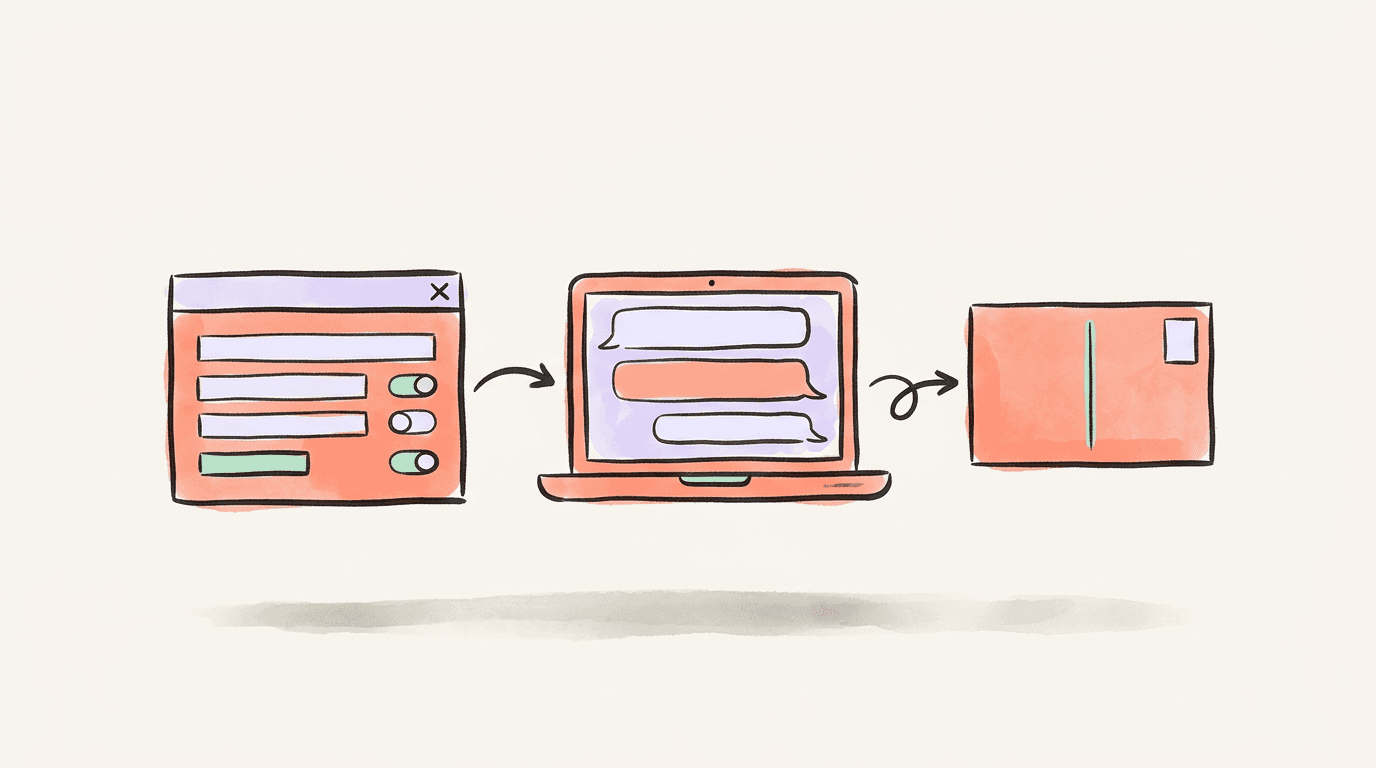
Connect Postory to Gemini CLI
First, sign in to Postory and connect the X, Threads, or Bluesky account you want Gemini to use. If several are connected, you can choose among them after setup. A Postory login without a social account still grants tools, but gives those publishing tools no target.
In your terminal, add the remote server:
gemini mcp add --transport http --scope user postory https://postory.io/mcp
Inside Gemini CLI, run /mcp auth postory and approve the Postory consent screen in your browser. Then run /mcp to confirm the server and tools appear. Google's documentation also allows a project-scoped configuration if you do not want the server available in every Gemini CLI project. Do not paste a Postory password, social password, or OAuth token into a chat prompt.
Google's walkthrough shows how Gemini CLI finds tools from an MCP server and how /mcp auth opens browser authorization. It is a useful visual check for the client mechanics; the Postory endpoint and social actions in this article are separate.
Test with a read-only prompt: “Use Postory to list my connected accounts. Show platform and connection status. Do not create, schedule, or publish anything.” Confirm that Gemini actually calls Postory and returns your expected account. If a tool is listed but the response is empty or an error, fix that connection before you try a write.
Add Postory to Gemini Apps on the web
If your account has custom apps, open gemini.google.com on a computer. Go to Settings & help → Connected Apps, find Custom apps, enter https://postory.io/mcp, and follow the Postory sign-in and consent steps. Google's help page describes the current controls; availability varies by account and region. In a prompt, type @ and select Postory so Gemini knows which connected app to call.
Start with the same list_accounts read as in CLI. A connection badge only proves that the app is configured. You need a visible account response to know the action completed for you. In Postory's October 23–24 Gemini web checks, Gemini visibly answered account and draft reads and created a Threads draft, while some other attempts produced intermittent generic errors. Those checks did not test Gemini web publishing. Use the visible result as your check and do not assume that an unseen write succeeded.
If custom apps are unavailable in Gemini on the web, Gemini CLI is a separate setup path. Connecting Postory in CLI does not automatically configure the web app, and vice versa.

Draft a post for the right social account
Once Gemini lists your accounts, ask it to pick a specific platform and connection: “Create a Postory draft for my Bluesky account about the launch. Show the saved text and account. Do not publish or schedule.” The same request works for X or Threads by naming that account instead. A draft remains in Postory until you authorize a separate delivery.
Review the draft for facts, tone, links, and media. Ask Gemini to edit the saved draft if needed. A draft made for one platform should not silently be reused on another: X, Threads, and Bluesky have different text and media limits. Postory's preflight checks them per selected account. The current text ceilings are 25,000 characters on X, 500 characters and up to five links on Threads, and 300 graphemes on Bluesky. Treat those as validation rules, not a reason to fill every post to its maximum.
When you are ready to send, ask Gemini to run preflight_publish and show the account, every part, media, timing, and cost. Only then approve the publish or schedule explicitly. If you enabled manual approval in Postory, finish on its approval page. Ask for delivery status afterward; a pending response is a reason to wait, not to submit the same draft again.
The same Postory tools can draft multi-part threads on all three networks. If your workflow is specifically about X, the X/Twitter MCP guide covers that platform's separate examples; for a Bluesky-first flow, see the Bluesky MCP guide.
What to check when Gemini does not complete an action
If no account appears, confirm the social account is connected to the same Postory user that authorized Gemini. In CLI, check /mcp and run /mcp auth postory again if the server is disconnected. On the web, confirm you selected @Postory in the prompt and still meet Google's account requirements.
If Gemini says an action succeeded but shows no account, draft ID, delivery status, or usable result, ask for a small read to establish the current state. Avoid repeating a publish request until the status is known. This matters especially when a client displays a generic error after a server call. The Postory MCP page lists the tool names and current supported scope.
Start using Gemini with Postory
Connect a social account in Postory, add its MCP endpoint to Gemini CLI or an eligible web custom app, and test list_accounts before creating a draft. The Postory MCP guide has the setup steps for both clients.
Try Postory free and review your first draft before any social delivery.
FAQ
Q: Is Gemini MCP a Gemini server or a way for Gemini to use tools?
Both meanings appear online. For this workflow, Gemini is the client and Postory is the remote MCP server that supplies social account tools.
Q: Can Gemini CLI publish to Threads and Bluesky through Postory?
Postory's MCP tools support drafts, preflight, scheduling, and publishing on connected Threads and Bluesky accounts. Connect and authenticate Gemini CLI, then check the account and preview before approving delivery; client-specific publication should be verified in your own session.
Q: Are custom apps available to every Gemini web user?
No. Google lists account, age, location, activity, and language requirements for custom connected apps. Check its current help page for your eligibility.
Q: Does adding Postory to Gemini also connect my social accounts?
No. Add the X, Threads, or Bluesky account in Postory separately, then authorize Gemini to call Postory's tools.
Q: Does a draft post automatically go live?
No. A draft is saved in Postory. Publishing or scheduling follows preflight and your separate approval.
Q: What if Gemini shows an error after I ask it to publish?
Check the saved draft and delivery status before trying again. A host error can hide a server response, so repeating a write without checking can create an unwanted duplicate.
Related articles

What Is the Best AI Facebook Post Generator?
We tested the top AI Facebook post generators in 2026 — here's which one actually writes posts worth publishing (and which ones waste your time).
Apr 23, 2026

AI Instagram Post Generators: 8 Tools Compared (2026)
Eight AI Instagram post generators compared on caption quality, image output, price and free tiers — and which one to pick for your use.
Apr 23, 2026

What Is the Best AI Social Media Post Generator?
We tested 10 AI social media post generators. Here's which tool actually wins for multi-platform use, free use, visuals, and small teams in 2026.
Apr 21, 2026