
Can You Schedule Posts on LinkedIn? (Yes — Here's How)

You can schedule posts on LinkedIn natively up to 3 months in advance using the clock icon in the post composer. It's free but limited — no bulk scheduling, no analytics, no cross-posting, no team review. Most creators graduate to a dedicated LinkedIn post scheduler once they're posting more than 2-3 times a week.
You just wrote a great LinkedIn post at 10pm on a Sunday. You don't want it to go live at 10pm on a Sunday. So — can you schedule posts on LinkedIn?
Short answer: yes. LinkedIn added native scheduling for personal profiles and Pages in 2023, and it works on both desktop and mobile. The longer answer is: the native scheduler covers the basics, but it's missing everything that makes content planning actually manageable. Let's walk through both.
Yes, You Can Schedule Posts on LinkedIn Natively
LinkedIn's native scheduler is free, built into the post composer, and works for both personal profiles and Company Pages. You can queue a post up to 3 months in advance — the minimum is 10 minutes out, and times are offered in 30-minute increments (though you can type an exact time if you want). There are no limits on how many posts you can schedule. It supports text posts, images, videos, polls, and documents — everything you'd write in a normal feed update. What it doesn't support: Events, Jobs, and Services posts. Those still have to be published live.
For a solo creator writing a handful of posts a week, the native scheduler is genuinely usable. You write, you pick a time, you close the tab. That's it.
The catch is that once you start scheduling more than a few posts at a time — or you want to see your content as a calendar, or you need to run posts past a teammate — the native tool runs out of room fast.
How Do You Schedule a Post on LinkedIn? (Step-by-Step)
Here's the exact flow on desktop, according to LinkedIn's own Help Center documentation:
- Click Start a post at the top of your LinkedIn homepage.
- Write your post in the "What do you want to talk about?" field. Add any images, video, or document attachments.
- Click the clock icon in the lower-right corner of the composer (next to the Post button).
- In the Schedule post pop-up, pick a date and time. The time has to be at least 10 minutes in the future and no more than 3 months out.
- Click Next, confirm the scheduled time shown above the post, then click Schedule.
- A confirmation toast pops up on the lower-left. You can find and edit scheduled posts by clicking the clock icon again — there's a "View all scheduled posts" link.
Post at the right time
Schedule across X & Threads
Queue your posts once and Postory publishes them at the best times — no more copy-pasting between apps.
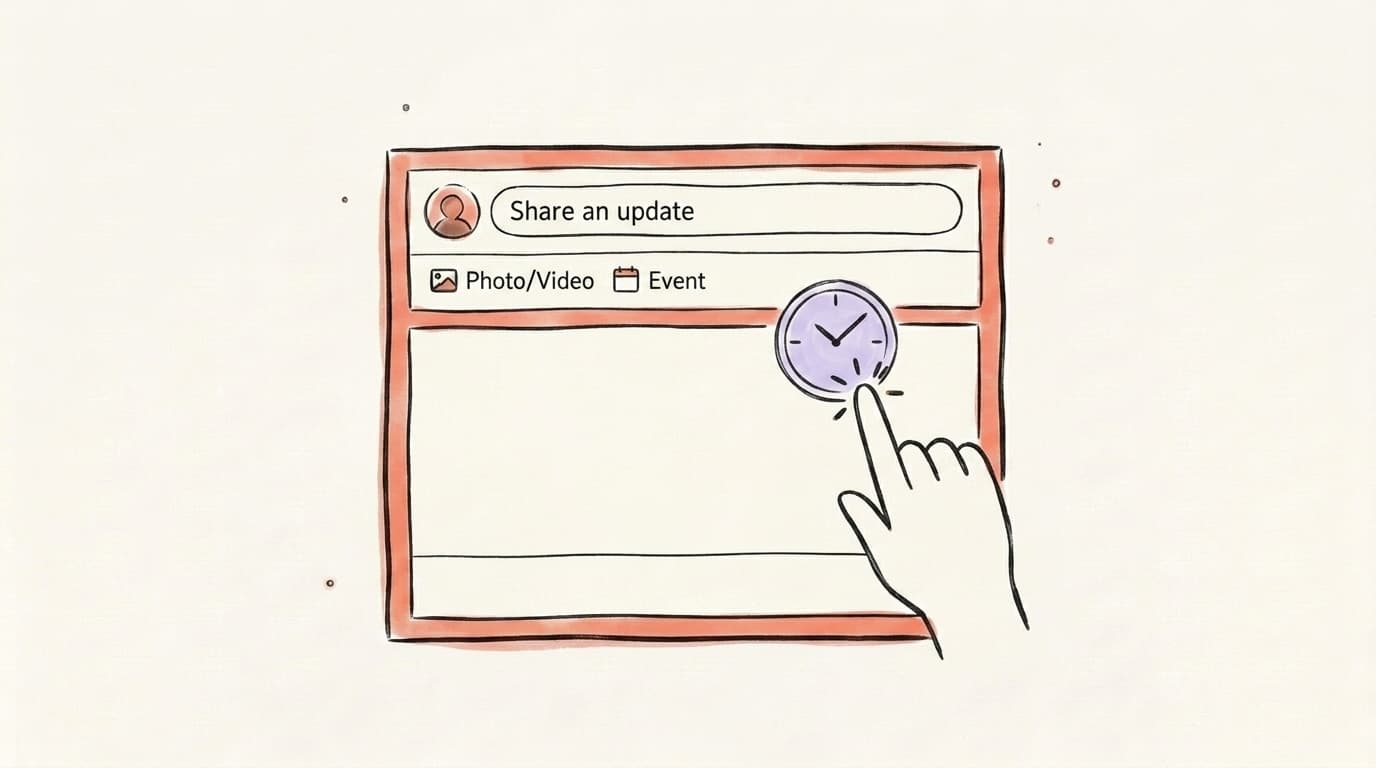
On mobile, the flow is nearly identical: tap Post in the navigation bar, write your content, tap the clock icon in the upper-right, pick a time, and schedule.
For Company Pages, the process is the same — just start the post from your Page admin view instead of your personal feed. LinkedIn's Page scheduling docs cover the Page-specific flow if you're managing a brand account.
One thing worth noting: scheduled posts are tied to the account that created them. You can't hand off a scheduled post for someone else to edit, and if you delete the draft before it goes live, it's gone — there's no trash or recovery.
What Are the Limitations of LinkedIn's Built-In Scheduler?
The native scheduler handles "write now, post later" and not much else. It has no bulk scheduling (you have to schedule each post one at a time, which gets painful fast), no content calendar view, no analytics or best-time recommendations, no team review or approval flow, no cross-platform support, and no ability to edit or reshuffle your queue in a calendar-style interface. It also only works for one account at a time — if you manage multiple personal profiles or Pages, you have to log in and out for each. And there's no AI assistance: it's a date-picker, not a writing tool.
As Buffer's LinkedIn scheduling guide points out, LinkedIn doesn't give you any timing suggestions or post performance context at the moment of scheduling — you're guessing on when to publish, then checking analytics hours later to see if you guessed right. For one person posting 1-2 times a week, none of this matters. For anyone trying to run a consistent content cadence across multiple accounts or platforms, it becomes a problem within a few weeks.
Why Do Most Creators Use a LinkedIn Post Scheduler Instead?
Most creators who post seriously switch to a third-party LinkedIn scheduling tool for three reasons: speed, visibility, and multi-platform support. Speed — you can batch a week of content in one sitting using templates, AI drafting, or a content queue, instead of scheduling post by post. Visibility — a calendar view lets you see gaps and overlaps at a glance, so you're not accidentally posting twice on Tuesday and nothing on Thursday. Multi-platform — the same idea is almost never a LinkedIn-only idea. If you're on X, Threads, and LinkedIn — a common mix for creators today — scheduling from three separate native tools is a coordination tax you feel every week.
Dedicated schedulers also add analytics that tie post performance back to timing, so you can learn which slots actually work for your audience instead of guessing. And the good ones add AI drafting so you're not staring at a blank composer at 9pm on a Sunday night.
If you're only on LinkedIn and only posting a couple times a week, the native scheduler is fine. Stick with it. If you're posting more than that, or on more than one platform, a dedicated tool usually pays back the setup time within the first few batches.
How Do You Schedule LinkedIn Posts With Postory?
Postory is a social media scheduler built around three co-equal platforms: X/Twitter, Threads, and LinkedIn. The scheduling flow is designed for creators who write across all three instead of jumping between native tools.
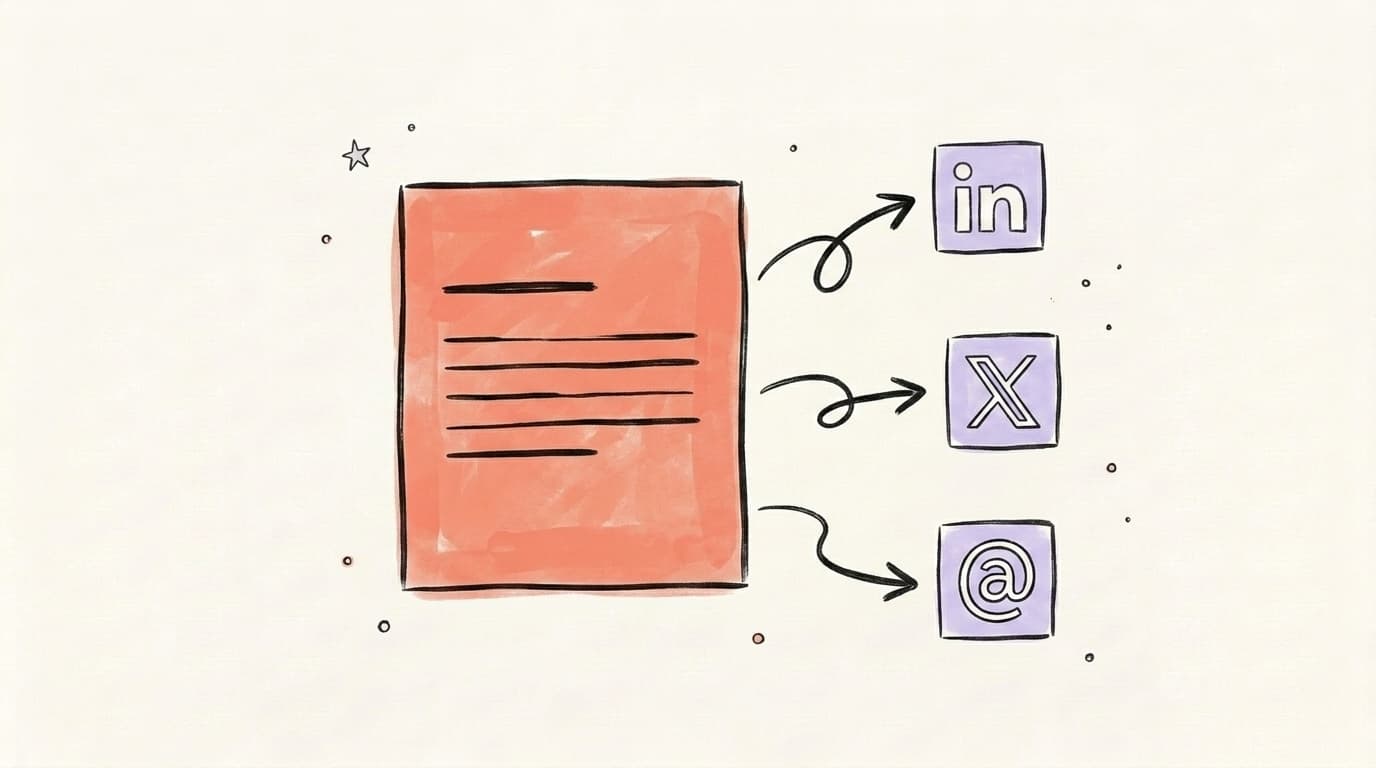
Here's how it works: connect your LinkedIn account once through the multi-platform publishing setup, then every post you draft can be scheduled to LinkedIn, cross-posted to X and Threads, or queued on a recurring time slot. You can write from a blank editor, start from a template, or use AI post writing to generate a draft from a single idea or a longer piece of source content.
The social media scheduling module gives you a calendar view of everything queued across platforms, so you can spot gaps and move posts around with a drag. You can batch a week of LinkedIn content in one sitting, tweak each post for platform-specific voice, and close the tab knowing the whole queue will publish on schedule. If a post needs an update after it's queued, you edit it in place — no deleting and rescheduling from scratch.
What Are LinkedIn Scheduling Best Practices?
A few rules worth following regardless of which tool you use. Post when your audience is on — for most professional audiences, that's weekday mornings (roughly 8-10am in their time zone) and late-afternoon windows. If you're not sure what works for your specific audience, our best time to post on LinkedIn guide breaks down the patterns by industry and role.
Pick a frequency you can sustain — 3-5 posts per week is a common target for personal brands, but consistency beats volume. Two posts a week forever beats seven posts a week for three weeks. Batch your writing, schedule in chunks — writing 4-5 posts in one sitting is dramatically faster than writing one post every day. Batching is where a scheduler actually earns its keep.
Leave room to jump on real-time moments — don't fill your queue so densely that you can't react to news or a comment thread that's blowing up. Leave 1-2 slots per week open. Check analytics, then adjust — after 2-3 weeks of scheduled posts, look at which slots actually drove engagement and shift your queue toward those windows.
Schedule LinkedIn Posts With AI Drafting — Try Postory Free
Scheduling is only half the problem — the other half is actually writing posts consistently. Postory combines both: a clean calendar-based scheduler across LinkedIn, X, and Threads, plus AI drafting that turns an idea, a link, or a longer piece of content into a platform-native post in a few seconds.
Try Postory free — write and schedule LinkedIn posts without staring at a blank composer.
FAQ
Q: Can you schedule posts on LinkedIn for free?
Yes. LinkedIn's native scheduler is completely free with no post limits. You can schedule as many posts as you want, up to 3 months in advance, from both desktop and mobile. Many third-party schedulers also offer free plans — Postory, Buffer, and others all have free tiers that cover basic LinkedIn scheduling.
Q: How far in advance can you schedule a LinkedIn post?
Up to 3 months (90 days) in advance using LinkedIn's native scheduler. The minimum is 10 minutes from the current time. Most third-party schedulers allow much longer planning windows — typically 6-12 months out or unlimited.
Q: Can you schedule posts to LinkedIn Groups or Events?
No — not with the native scheduler. LinkedIn only supports scheduling for personal profile posts and Company Page posts. Events, Jobs, and Services posts still have to be published live, and posts inside Groups also need to be published manually. Some third-party tools work around this by sending reminders at scheduled times, but the publishing has to happen manually.
Q: Can you edit a scheduled LinkedIn post?
Yes. Click the clock icon in the composer and select "View all scheduled posts" — from there you can edit the content, change the scheduled time, or delete the post entirely. Just remember that if you delete a scheduled post, it's gone — there's no draft recovery.
Q: Does LinkedIn's algorithm penalize scheduled posts?
No. LinkedIn's official documentation treats natively scheduled posts identically to live posts. Older concerns about "scheduled posts getting less reach" generally predate native scheduling and referred to posts pushed through unofficial third-party APIs — not to today's native scheduler or modern tools that use LinkedIn's supported publishing API.
Q: How many posts should you schedule on LinkedIn per week?
For personal profiles, 3-5 posts per week is a solid target — enough for consistency without burning out. For Company Pages, 2-4 posts per week works well for most B2B brands. Consistency matters more than volume. See our guide on how often to post on social media for platform-by-platform breakdowns.
Q: Can you schedule LinkedIn posts and cross-post to X or Threads at the same time?
Not with LinkedIn's native scheduler — it only publishes to LinkedIn. For cross-platform scheduling, you need a third-party tool like Postory that supports multiple platforms from one editor. That way a single draft can be tailored and queued for LinkedIn, X, and Threads in one flow.
Q: What's the best third-party LinkedIn post scheduler?
It depends on what else you're doing. If you're LinkedIn-only, the native scheduler is probably enough. If you post across X, Threads, and LinkedIn, a multi-platform tool like Postory, Buffer, or Hootsuite saves time. If you write a lot and want AI help drafting, pick a tool that includes AI post writing in its core flow rather than bolted on as an upsell.
Related articles
What Is the Best Time to Post on LinkedIn?
The best times to post on LinkedIn are Tuesday through Thursday, 10 AM–2 PM. Here's the full 2026 data breakdown by day, hour, and industry.
Apr 11, 2026
LinkedIn Premium: Worth It for Creators and Founders in 2026?
A candid tier-by-tier review of LinkedIn Premium in 2026 — who actually needs Career, Business, Sales Navigator, or Recruiter Lite, and who should stay free.
Jun 12, 2026
LinkedIn Polls: Use Them or Skip Them in 2026?
Polls still post big engagement numbers in 2026 — but most of it is hollow. Where polls fit in a LinkedIn content strategy, and when to skip them.
Jun 7, 2026